How to Change Your Default Search Engine in Google Chrome (Step-by-Step)
Table of Contents
- The Complete Overview of Google Chrome How to Change Default Search Engine
- Historical Background and Evolution
- Core Mechanisms: How It Works
- Key Benefits and Crucial Impact
- Major Advantages
- Comparative Analysis
- Future Trends and Innovations
- Conclusion
- Comprehensive FAQs
- Q: Why does my default search engine keep changing back to Google?
- Q: Can I add a custom search engine not listed in Chrome’s settings?
- Q: Does switching the default search engine affect my bookmarks or history?
- Q: How do I change the default search engine on Chrome for Android/iOS?
- Q: What’s the difference between "default search engine" and "search suggestions"?
- Q: Can my employer or school block me from changing the default search engine?
- Q: Are there performance differences between search engines in Chrome?
- Q: Does using a VPN affect which search engines are available as defaults?
- Q: How can I ensure my children’s Chrome profile uses a kid-safe search engine?
Most users never question why their searches default to Google Chrome’s embedded engine—even when they’ve explicitly chosen alternatives like DuckDuckGo or Bing. The assumption persists that switching requires arcane technical knowledge, when in reality, the process is streamlined into Chrome’s settings with just a few clicks. Yet, the deeper you dig, the more nuanced the experience becomes: regional restrictions, enterprise policies, and even Chrome’s own algorithmic nudges can silently override preferences. Understanding these layers isn’t just about personalization; it’s about reclaiming autonomy in an ecosystem where search engines often dictate more than just results.
The irony lies in Chrome’s dominance as both a platform and a search provider. Google’s dual role as the browser’s creator and default search engine creates a feedback loop where users may not realize they’re trapped in a walled garden—until they attempt to escape. Whether motivated by privacy concerns, regional censorship, or sheer preference for a different algorithm, the act of changing google chrome how to change default search engine reveals how deeply embedded these choices are in the digital experience. The solution, however, is simpler than the problem suggests.
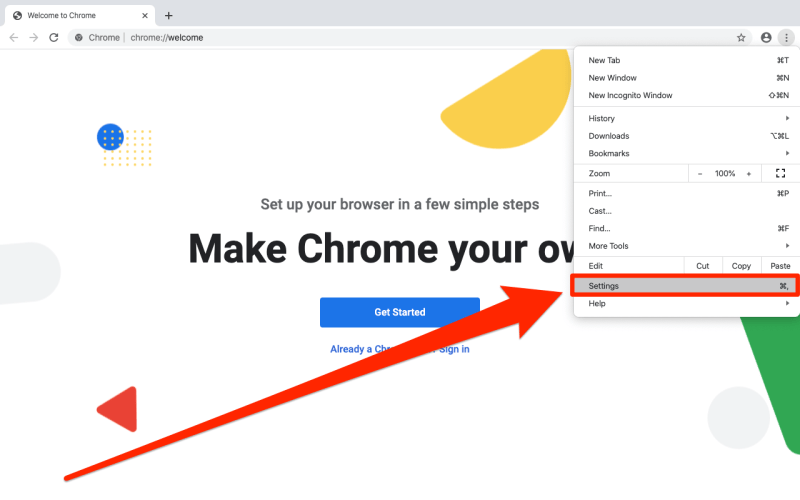
The Complete Overview of Google Chrome How to Change Default Search Engine
At its core, modifying the default search engine in Chrome is a two-step process: selecting an alternative from Chrome’s pre-approved list and confirming the change in the browser’s settings. However, the execution varies based on whether you’re using a personal account, a managed enterprise profile, or a device with parental controls. Chrome’s design prioritizes user convenience but often obscures the underlying mechanics—such as how search suggestions are dynamically adjusted based on location or past behavior. For instance, a user in the EU might find Bing pre-selected due to Microsoft’s search partnership with the region, while others see DuckDuckGo or Ecosia as default options after updates.The complexity escalates when considering third-party extensions or system-level policies. Some organizations enforce search engine restrictions via Group Policy Objects (GPOs), while others rely on Chrome’s "Managed Settings" to lock down configurations. Even without explicit restrictions, Chrome’s default search engine can shift unexpectedly after updates, particularly when Google rolls out new features tied to its own search vertical. This fluidity underscores why a one-time change isn’t always permanent—users must periodically verify their settings to ensure alignment with their preferences.
Historical Background and Evolution
The concept of a default search engine in browsers dates back to the early 2000s, when Internet Explorer bundled Microsoft’s MSN Search with Windows. The practice sparked antitrust scrutiny, leading to the EU’s 2003 decision requiring Microsoft to offer users a choice of search providers during installation. Chrome entered the scene in 2008 with Google Search hardcoded as the default, a move that critics argued leveraged the browser’s market dominance to entrench Google’s search monopoly. Over time, Chrome introduced options to switch defaults, but the process remained opaque—users had to navigate through nested menus to find the setting, often without clear explanations of why their choice might revert.By 2015, Chrome began integrating search engine suggestions directly into the omnibox (the address/search bar), further blurring the line between browser and search provider. This shift mirrored Google’s broader strategy of making its services inseparable from the platform. Meanwhile, privacy-focused alternatives like DuckDuckGo and Startpage gained traction, prompting Chrome to add them to its list of selectable defaults. The evolution reflects a broader tension: browsers now serve as gatekeepers of search, yet users increasingly demand transparency and choice—even if the interface makes it harder to exercise.
Core Mechanisms: How It Works
Under the hood, Chrome’s default search engine setting is stored in the browser’s preferences database, accessible via the `Preferences` file in the user’s profile directory (typically `%LOCALAPPDATA%\Google\Chrome\User Data\Default`). This file contains JSON-formatted data, including a key-value pair for the default search provider. When a user initiates a search from the omnibox, Chrome checks this setting and routes the query to the corresponding engine’s API endpoint. For example, selecting DuckDuckGo would send requests to `https://duckduckgo.com/html/?q=`, while Google would use its own internal API.The process isn’t entirely user-controlled, however. Chrome periodically syncs these preferences with Google’s servers if the user is signed in, which can override local changes—especially in managed environments. Additionally, Chrome’s autofill and suggestion features dynamically adjust based on search history and location, subtly influencing which engine feels "default" even after manual selection. For instance, a user in Germany might see Bing suggestions dominate their omnibox, regardless of their chosen default, due to regional search agreements.
Key Benefits and Crucial Impact
Switching your default search engine in Chrome isn’t merely about aesthetics; it’s a statement of intent. For privacy advocates, it means bypassing Google’s data collection practices, which track queries to refine ads and personalize results. For others, it’s about accessing regional content or leveraging niche search features—like DuckDuckGo’s instant answers or Ecosia’s eco-friendly model. The impact extends beyond individual browsing: collective shifts in default search engines can influence market dynamics, as seen when Bing gained traction in the EU after Google’s antitrust fines.The psychological effect is equally significant. Users who switch often report a sense of empowerment, as if reclaiming control from an ecosystem that defaults to surveillance capitalism. Yet, the trade-offs are real. Alternative engines may lack Google’s depth in results or integration with services like Maps or YouTube. The decision, therefore, hinges on prioritizing privacy, speed, or functionality—each with its own trade-offs.
"The default search engine isn’t just a tool; it’s a reflection of the values you’re willing to opt into. Google’s dominance isn’t accidental—it’s engineered into the browser itself." — Cory Doctorow, Technology and Society Analyst
Major Advantages
- Privacy Enhancement: Engines like DuckDuckGo or Startpage don’t track searches across devices, reducing exposure to targeted advertising.
- Regional Compliance: Some countries mandate local search providers (e.g., Russia’s Yandex or China’s Baidu), making switching essential for compliance.
- Algorithm Diversity: Alternatives like Bing or Qwant may surface different results, offering fresh perspectives on topics.
- Eco-Friendly Browsing: Search engines like Ecosia plant trees with ad revenue, aligning searches with sustainability goals.
- Customization: Users can fine-tune search behavior (e.g., disabling suggestions or enabling safe search filters) to match their needs.
Comparative Analysis
| Feature | Google (Default) | DuckDuckGo | Bing |
|---|---|---|---|
| Data Tracking | Extensive (personalized ads, cross-device tracking) | Minimal (no tracking, anonymized queries) | Moderate (Microsoft ecosystem integration) |
| Result Quality | High (deep integration with Google services) | Moderate (relies on aggregators like Yahoo) | High (AI-driven refinements, visual search) |
| Privacy Features | Limited (Incognito mode only) | Built-in (no IP logging, !bang commands) | Optional (Privacy Dashboard for history) |
| Regional Availability | Global (with localized results) | Global (but some regions block access) | Global (strong in EU/US via Microsoft deals) |

Future Trends and Innovations
The next frontier in default search engine customization lies in AI-driven personalization. Chrome is already experimenting with "search lenses"—contextual overlays that adapt results based on user behavior, location, or even biometric data (e.g., voice queries). While this could enhance relevance, it also risks deepening the lock-in effect, making it harder to switch defaults. Privacy-focused browsers like Brave are pushing back by bundling alternative engines with built-in ad-blockers, while decentralized networks (e.g., IPFS-based search) may emerge as true competitors to Google’s dominance.Another trend is the rise of "search layers," where users can stack multiple engines (e.g., Google for facts, DuckDuckGo for privacy) via extensions. Chrome’s policy on third-party search APIs will determine how seamless this becomes. Meanwhile, regulatory pressure—such as the EU’s Digital Markets Act—may force Chrome to offer more transparent switching mechanisms, including opt-outs for data collection tied to search defaults.
Conclusion
Changing your default search engine in Chrome is a microcosm of broader digital sovereignty issues. The process itself is straightforward, but the implications—privacy, regional access, and algorithmic bias—are profound. Users who take the time to customize their settings often find that the default isn’t just about convenience; it’s about aligning their browsing habits with their values. As search engines become more intertwined with browsers, the ability to switch remains a critical tool for maintaining control over one’s digital footprint.The key takeaway? Don’t assume Chrome’s settings will persist indefinitely. Verify your default search engine periodically, especially after updates, and consider whether the trade-offs of alternatives (speed, features, privacy) justify the switch. In an era where search is the gateway to the internet, the choice of engine is more than a preference—it’s a stance.
Comprehensive FAQs
Q: Why does my default search engine keep changing back to Google?
Chrome may revert defaults due to updates, enterprise policies, or syncing with a Google account. To lock it in, use a local profile (not signed in) or check for managed settings in chrome://policy. Some extensions (e.g., "Default Search Engine") can also enforce your choice.
Q: Can I add a custom search engine not listed in Chrome’s settings?
Yes, via Chrome’s "Add a search engine" option in the omnibox menu. Enter the URL (e.g., https://search.example.com/?q=%s) and name it. This works for niche engines like GitHub’s code search or specialized academic databases.
Q: Does switching the default search engine affect my bookmarks or history?
No. The change only alters where new searches are routed; existing bookmarks, history, and saved searches remain tied to their original sources. However, some extensions may sync search preferences across devices.
Q: How do I change the default search engine on Chrome for Android/iOS?
On mobile, tap the three-dot menu → Settings → Search engine. Select from the list (e.g., Google, Bing, Yahoo). Unlike desktop, mobile Chrome doesn’t support custom engines directly but may offer regional defaults.
Q: What’s the difference between "default search engine" and "search suggestions"?
The default engine determines where queries are sent, while suggestions (autofill in the omnibox) are generated by Chrome’s predictive algorithms, often prioritizing Google’s results. To disable suggestions, go to chrome://settings/searchEngines and uncheck "Enable Omnibox suggestions."
Q: Can my employer or school block me from changing the default search engine?
Yes. Managed Chrome devices (via Google Admin Console) can enforce search engine policies. Check chrome://policy for restrictions. If locked, you may need to use a different browser or VPN to bypass the setting.
Q: Are there performance differences between search engines in Chrome?
Generally, Google is fastest due to Chrome’s optimization, but latency depends on your location and the engine’s servers. DuckDuckGo may feel slower due to aggregated results, while Bing can be faster for Microsoft ecosystem users (e.g., Office 365 integrations). Test with tools like DNSPerf for objective comparisons.
Q: Does using a VPN affect which search engines are available as defaults?
Indirectly. Some engines (e.g., Russian or Chinese providers) may not appear in your list if your VPN routes traffic through a country where they’re restricted. Chrome’s default list is dynamic and location-based, so switching servers can alter options.
Q: How can I ensure my children’s Chrome profile uses a kid-safe search engine?
Use Chrome’s Supervised User feature (via Family Link) to set defaults like Google SafeSearch or KidRex. Alternatively, configure a separate profile with a child-friendly engine and enable chrome://flags/#enable-restricted-api to block adult content.
Leave a Comment
Comments are moderated before appearing. The data you submit is processed according to the Privacy Policy of versiliasolutions.oneagency.co.