How Do You Save Passwords on iPhone? The Definitive Guide to iCloud Keychain & Beyond
Table of Contents
- The Complete Overview of How to Save Passwords on iPhone
- Historical Background and Evolution
- Core Mechanisms: How It Works
- Key Benefits and Crucial Impact
- Major Advantages
- Comparative Analysis
- Future Trends and Innovations
- Conclusion
- Comprehensive FAQs
- Q: Can I save passwords on iPhone without iCloud Keychain?
- Q: What happens if I disable iCloud Keychain but still save passwords in Safari?
- Q: Are third-party password managers safer than iCloud Keychain?
- Q: How do I manually add a password to iCloud Keychain?
- Q: What should I do if my iPhone asks for my iCloud password repeatedly when saving passwords?
- Q: Can I use iCloud Keychain and a third-party password manager simultaneously?
- Q: Are passwords saved on iPhone vulnerable to jailbreaking?
- Q: How do I remove a saved password from iCloud Keychain?
- Q: Will saving passwords on iPhone slow down my device?
- Q: Can I share saved passwords with family or friends using iCloud Keychain?
Apple’s ecosystem has long prioritized seamless integration, and nowhere is this more evident than in its password-saving capabilities. The question "how do you save passwords on iPhone" isn’t just about convenience—it’s about balancing accessibility with robust security. Whether you’re setting up a new device, migrating from another platform, or simply optimizing your workflow, understanding the mechanics behind iCloud Keychain and alternative methods is critical. The default approach, while intuitive, often leaves users unaware of hidden customizations or potential vulnerabilities. Meanwhile, third-party solutions promise flexibility but introduce trade-offs in compatibility and security. The reality is that the answer isn’t one-size-fits-all; it depends on your threat model, device ecosystem, and tolerance for manual oversight.
The iPhone’s password-saving functionality has evolved alongside Apple’s broader security philosophy. Early iterations relied on rudimentary keychain storage, but modern implementations leverage end-to-end encryption, biometric authentication, and cross-device synchronization. This shift reflects a broader industry trend: passwords are no longer just strings of characters but dynamic, context-aware assets tied to a user’s digital identity. The implications are profound—from reducing password fatigue to mitigating phishing risks—but they also demand a nuanced understanding of how these systems interact with the rest of your digital life. For instance, saving passwords on an iPhone isn’t just about clicking "Save Password" in Safari; it’s about configuring two-factor authentication, managing app permissions, and even deciding whether to trust a third-party password manager over Apple’s native solution.
The Complete Overview of How to Save Passwords on iPhone
Apple’s approach to password management centers on iCloud Keychain, a feature that silently syncs credentials across all your Apple devices while maintaining encryption standards that even Apple itself can’t access. When you encounter a login prompt in Safari or an app, the system offers to save the password—provided you’ve enabled Keychain in Settings > Passwords. This process is automatic for most users, but the underlying architecture is far more sophisticated. Each saved password is encrypted using a key derived from your device’s hardware and your iCloud account, ensuring that only your devices can decrypt and use them. The result is a frictionless experience where you rarely need to remember a password again, yet the system remains resilient against unauthorized access.Beyond iCloud Keychain, the iPhone supports third-party password managers like 1Password, Bitwarden, or LastPass, which integrate via the Password AutoFill framework. These tools often provide additional features—such as secure sharing, travel mode, or advanced breach monitoring—but they require explicit user setup and may introduce compatibility quirks. For example, some apps block third-party autofill entirely, forcing users to rely on manual entry or Apple’s native solution. The choice between these methods isn’t just about convenience; it’s about aligning with your security priorities. A power user might prefer a dedicated manager for granular control, while a casual user may find iCloud Keychain’s simplicity sufficient. Understanding these trade-offs is the first step in answering "how do you save passwords on iPhone" effectively.
Historical Background and Evolution
The concept of password management on Apple devices traces back to OS X Keychain, introduced in 2002 as a secure storage solution for system-level credentials. Early versions were limited to local devices, but the introduction of iCloud Keychain in 2012 (with iOS 7) marked a turning point. By syncing passwords across iPhone, iPad, and Mac, Apple eliminated the need for users to manually transfer credentials between devices—a common pain point in the pre-cloud era. This innovation was part of a broader push toward seamless ecosystem integration, where Apple’s hardware, software, and services worked in harmony to reduce user friction.The evolution didn’t stop there. With iOS 12 (2018), Apple added automatic strong password generation and two-factor authentication (2FA) support for Keychain-stored passwords. Subsequent updates introduced Security Code AutoFill (for apps like banking) and iCloud Keychain for Windows, expanding compatibility beyond Apple’s walled garden. Meanwhile, third-party password managers began leveraging Apple’s Password AutoFill API, allowing them to compete with iCloud Keychain while adhering to iOS security standards. Today, the question "how do you save passwords on iPhone" encompasses not just the original Keychain feature but a suite of tools designed to adapt to modern threats like credential stuffing and phishing.
Core Mechanisms: How It Works
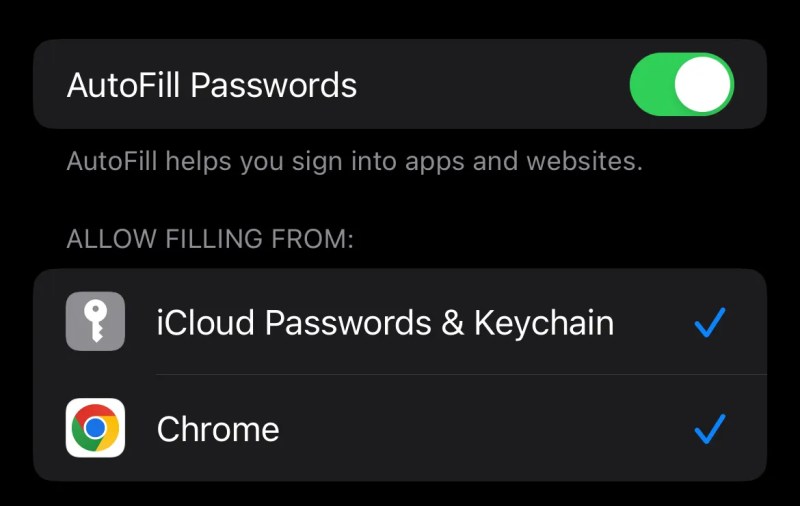
At its core, iCloud Keychain operates as a client-side encrypted vault. When you save a password in Safari or an app, the data is encrypted on your device using a Secure Enclave (a dedicated hardware security module) and your iCloud account’s encryption key. This encrypted blob is then uploaded to Apple’s servers, where it remains inaccessible even to Apple engineers. When you log in on another device, the process reverses: your device requests the encrypted data, decrypts it using your local key, and presents the credentials to the requesting app. This zero-knowledge architecture ensures that only your trusted devices can access your passwords.For third-party managers, the workflow differs slightly. Apps like 1Password or Bitwarden use their own encryption keys (often derived from a master password) and sync data via their own servers or open-source protocols. When you enable Password AutoFill in iOS, these managers register as "credential providers" and compete with iCloud Keychain for the right to autofill credentials. The system prioritizes the last-used method, but you can manually override this behavior in Settings > Passwords > AutoFill Passwords. This dual-layer approach—native Keychain vs. third-party—highlights Apple’s commitment to user choice, even as it maintains strict control over the underlying security model.
Key Benefits and Crucial Impact
The decision to save passwords on an iPhone isn’t merely about convenience; it’s a strategic move toward reducing digital vulnerability. With the average user managing 100+ online accounts, memorizing unique passwords for each is impractical—and risky. Password managers mitigate this by generating and storing complex, randomized credentials, while also monitoring for breaches. For Apple users, the benefits extend beyond security: cross-device synchronization ensures you’re never locked out of an account, and biometric authentication (Face ID/Touch ID) adds an extra layer of protection against unauthorized access. The impact is measurable—studies show that users with password managers experience fewer account takeovers and lower stress levels related to digital security.Yet, the advantages aren’t without trade-offs. Relying solely on iCloud Keychain, for example, ties you to Apple’s ecosystem. If you switch to Android or another platform, migrating passwords can be cumbersome. Third-party managers offer more flexibility but may introduce vendor lock-in or privacy concerns if the company’s security practices come under scrutiny. The key is recognizing that "how do you save passwords on iPhone" isn’t a binary choice but a spectrum of options, each with distinct implications for your digital lifestyle.
"Passwords are the keys to your digital life. The stronger the lock, the less likely someone will pick it—but only if you use it consistently." — Apple’s Security Engineering Team (2023)
Major Advantages
- Automatic Synchronization: iCloud Keychain syncs passwords across all your Apple devices in real time, eliminating the need to manually re-enter credentials.
- End-to-End Encryption: Passwords are encrypted on your device and never stored in plaintext, even by Apple, ensuring maximum privacy.
- Strong Password Generation: iCloud Keychain can create and save 20+ character passwords with a single tap, reducing reliance on weak or reused credentials.
- Biometric Protection: Face ID or Touch ID is required to access saved passwords, adding a hardware-level security barrier.
- Breach Alerts: Some third-party managers (e.g., 1Password) actively monitor the dark web for exposed credentials and notify you if a password is compromised.
Comparative Analysis
| Feature | iCloud Keychain | Third-Party Managers (e.g., 1Password, Bitwarden) |
|---|---|---|
| Ecosystem Lock-In | Exclusive to Apple devices (Mac, iPhone, iPad) | Cross-platform (Windows, Linux, Android, etc.) |
| Encryption Model | Apple’s proprietary encryption (device-specific keys) | User-controlled encryption (e.g., AES-256 with master password) |
| Password Sharing | Limited to family sharing or manual export | Secure sharing with granular permissions (e.g., 1Password’s "Groups") |
| Advanced Features | Basic breach monitoring, no travel mode | Travel mode, emergency access, custom fields, and more |

Future Trends and Innovations
The next frontier in password management lies in passwordless authentication, where biometrics or hardware tokens replace traditional credentials entirely. Apple has already hinted at this shift with Face ID for app logins and USB-C authentication (via Lightning and MagSafe). Meanwhile, WebAuthn—a standard for passwordless logins using public-key cryptography—is gaining traction, with browsers like Safari supporting it natively. For iPhone users, this could mean eliminating passwords altogether in favor of device-based authentication, though adoption will depend on widespread industry support.Another emerging trend is AI-driven password security, where machine learning models analyze your behavior to detect and block phishing attempts in real time. Companies like 1Password are experimenting with AI-powered breach alerts, while Apple may integrate similar features into iCloud Keychain. Additionally, decentralized identity solutions (e.g., blockchain-based credentials) could challenge traditional password managers, though regulatory and usability hurdles remain significant. For now, the question "how do you save passwords on iPhone" will continue to revolve around balancing convenience with security—but the landscape is undeniably shifting toward a future where passwords, as we know them, may become obsolete.
Conclusion
Saving passwords on an iPhone is no longer a technical afterthought but a cornerstone of modern digital security. Whether you opt for iCloud Keychain’s seamless integration or a third-party manager’s advanced features, the goal remains the same: minimizing risk while maximizing usability. The choice depends on your priorities—ecosystem loyalty, feature depth, or cross-platform flexibility—but ignoring the question entirely leaves you vulnerable to credential theft or account lockouts. As Apple and the industry push toward passwordless systems, today’s methods will evolve, but the core principle will endure: secure, automated password management is non-negotiable in a connected world.For most users, the answer to "how do you save passwords on iPhone" starts with enabling iCloud Keychain and letting Apple handle the rest. For those with specialized needs, third-party tools offer a viable alternative. What’s certain is that the tools you choose today will shape your digital security for years to come—so select them wisely.
Comprehensive FAQs
Q: Can I save passwords on iPhone without iCloud Keychain?
A: Yes, but with limitations. You can use third-party password managers like 1Password or Bitwarden, which sync via their own servers or open-source protocols. However, these require manual setup and may not integrate as smoothly with Apple’s ecosystem. For native apps, Safari’s "Save Password" option still works locally (without iCloud sync) if you disable Keychain in Settings > Passwords > iCloud Keychain.
Q: What happens if I disable iCloud Keychain but still save passwords in Safari?
A: Passwords saved in Safari will remain stored on your device but won’t sync to other Apple devices. They’ll be accessible only on that specific iPhone or iPad. If you later re-enable iCloud Keychain, existing local passwords won’t automatically migrate—you’ll need to re-enter them or manually export/import them (via Settings > Passwords > Export Passwords).
Q: Are third-party password managers safer than iCloud Keychain?
A: Security depends on the tool and your threat model. iCloud Keychain uses end-to-end encryption with Apple’s hardware security, while top third-party managers (e.g., 1Password, Bitwarden) offer zero-knowledge encryption with user-controlled keys. However, third-party managers may introduce risks if the company is breached or if you forget your master password. For most users, iCloud Keychain strikes a balance between security and convenience.
Q: How do I manually add a password to iCloud Keychain?
A: You can’t directly add passwords to Keychain without using an app or website. However, if you’ve already saved a password in Safari or another app, it will automatically appear in Settings > Passwords. For existing credentials, use the app’s "Save Password" prompt or manually enter them in a supported app (e.g., Mail for email passwords). Third-party managers allow bulk import via CSV files.
Q: What should I do if my iPhone asks for my iCloud password repeatedly when saving passwords?
A: This usually indicates a sync issue or corrupted Keychain data. Try these steps:
- Restart your iPhone and ensure you’re on a stable Wi-Fi connection.
- Go to Settings > Passwords > iCloud Keychain and toggle it off, then back on.
- Check for iOS updates (Settings > General > Software Update).
- If the issue persists, reset Keychain by signing out of iCloud (Settings > [Your Name] > Sign Out), then back in.
- As a last resort, back up your passwords via Settings > Passwords > Export Passwords (requires iCloud sync), then reset Keychain.
Q: Can I use iCloud Keychain and a third-party password manager simultaneously?
A: Yes, but they’ll compete for autofill priority. When you enable Password AutoFill in Settings > Passwords, iOS will default to the last-used method (iCloud Keychain or third-party). To switch, open the relevant app (e.g., 1Password) and select it as the default in Settings > Passwords > AutoFill Passwords. Note that some apps may override this setting for security reasons (e.g., banking apps often block third-party autofill).
Q: Are passwords saved on iPhone vulnerable to jailbreaking?
A: Yes. Jailbreaking removes Apple’s security restrictions, including those protecting iCloud Keychain and the Secure Enclave. A jailbroken device is highly vulnerable to credential theft, malware, and other exploits. If you must jailbreak, avoid saving sensitive passwords on the device and consider using a separate, non-jailbroken iPhone for financial or personal accounts.
Q: How do I remove a saved password from iCloud Keychain?
A: Open Settings > Passwords, find the password in the list, and tap it. Scroll down and select Delete Password. Confirm by entering your device passcode or using Face ID/Touch ID. Deleted passwords will remove from all synced devices. For third-party managers, the process varies—check the app’s settings or support documentation.
Q: Will saving passwords on iPhone slow down my device?
A: No, iCloud Keychain and password managers are optimized for minimal performance impact. Password storage and sync occur in the background, using negligible battery and processing power. However, if you’re using a very old iPhone (e.g., iPhone 5s or earlier), some third-party managers may feel sluggish due to hardware limitations. For most modern devices, performance differences are negligible.
Q: Can I share saved passwords with family or friends using iCloud Keychain?
A: iCloud Keychain doesn’t support direct password sharing, but you can use Family Sharing to sync passwords across up to six family members. However, this is not a secure sharing method—it’s designed for family accounts (e.g., Netflix, shared subscriptions). For secure sharing (e.g., with a roommate or coworker), use a third-party manager like 1Password or Bitwarden, which offer controlled access with expiration dates and activity logs.
Leave a Comment
Comments are moderated before appearing. The data you submit is processed according to the Privacy Policy of versiliasolutions.oneagency.co.