The Definitive Way to Manage Cookies in Chrome
Table of Contents
- The Complete Overview of How to Add Cookies in Chrome
- Historical Background and Evolution
- Core Mechanisms: How It Works
- Key Benefits and Crucial Impact
- Major Advantages
- Comparative Analysis
- Future Trends and Innovations
- Conclusion
- Comprehensive FAQs
- Q: Can I add cookies for a different domain in Chrome?
- Q: Will manually adding cookies break my Chrome profile?
- Q: Are there risks to using cookie-editing extensions?
- Q: How do I check if a cookie was successfully added?
- Q: Can I automate cookie addition for multiple sites?
- Q: Why does Chrome block some cookies I try to add?
Chrome’s cookie system is the unsung backbone of personalized browsing—silently enabling login persistence, shopping carts, and ad targeting while raising privacy concerns. Yet most users never interact with it directly, leaving cookie settings to default configurations that may conflict with security needs or functionality requirements. Whether you’re a developer debugging session storage or a privacy-conscious user enforcing strict cookie policies, understanding how to add cookies in Chrome is a critical skill. The process isn’t just about pasting HTTP headers; it involves navigating Chrome’s DevTools, modifying storage via extensions, or even scripting custom solutions—each method with its own trade-offs.
Missteps here can lead to broken sessions, security vulnerabilities, or compliance violations under GDPR. For instance, manually injecting cookies without proper validation can expose you to session hijacking risks, while disabling all cookies might render half the web unusable. The balance between utility and security demands precision—whether you’re troubleshooting a login loop, testing a web app, or enforcing a strict no-tracking policy. Chrome’s flexibility in handling cookies stems from its layered architecture: browser defaults, site-specific permissions, and developer tools all play a role. Mastering these layers transforms a technical hurdle into a controlled feature.
This guide cuts through the ambiguity. We’ll cover every verified method to add cookies in Chrome, from native browser settings to advanced DevTools techniques, while addressing edge cases like cross-domain restrictions and HTTPS limitations. No fluff—just actionable steps, technical context, and comparisons to other browsers. By the end, you’ll know not just how to modify cookies, but when to do so safely.
The Complete Overview of How to Add Cookies in Chrome
Chrome’s cookie management system is a hybrid of user-facing controls and developer-oriented tools, designed to balance convenience with security. At its core, cookies are small text files stored by websites to maintain state—whether for authentication, preferences, or analytics. While Chrome automatically handles most cookies based on site permissions, users and developers often need to intervene: adding missing cookies to restore sessions, testing authentication flows, or bypassing paywall restrictions. The methods to achieve this vary in complexity, from simple UI toggles to manual HTTP header injection or script-based solutions.
The challenge lies in Chrome’s security model. Unlike legacy browsers, modern Chrome enforces SameSite cookie attributes by default, restricting cross-site cookie sharing to mitigate CSRF attacks. This means blindly adding cookies—especially from third-party domains—can trigger warnings or fail silently. Additionally, Chrome’s DevTools provide the most granular control, but their power comes with risks: improper cookie modifications can corrupt sessions or expose sensitive data. For this reason, best practices emphasize validation before application, whether through console checks or automated scripts.
Historical Background and Evolution
The concept of cookies dates back to 1994, when Netscape introduced them as a way to persist user data across sessions. Early implementations were rudimentary, with no built-in security measures beyond basic expiration times. Chrome, launched in 2008, inherited this model but introduced stricter defaults as web threats evolved. The shift toward how to add cookies in Chrome became more relevant with the rise of single sign-on (SSO) systems and cross-domain tracking. Google’s push for privacy—such as blocking third-party cookies by default in 2024—further complicated manual cookie management, forcing users to adapt or risk functionality gaps.
Developer tools in Chrome have also evolved significantly. Early versions of DevTools lacked cookie inspection capabilities, requiring users to rely on external tools or browser extensions. Today, Chrome’s DevTools offer real-time cookie editing, network request interception, and even cookie storage emulation for debugging. This progression reflects broader industry trends: as web applications grew more complex, so did the need for precise cookie manipulation. Yet, these advancements introduced new challenges, such as handling cookies in service workers or navigating Chrome’s sandboxed environment for extensions.
Core Mechanisms: How It Works
When you add cookies in Chrome, you’re interacting with the browser’s storage engine, which adheres to the W3C’s Document.cookie API. This API allows JavaScript to read and write cookies for the current domain, but Chrome’s security policies impose limits. For example, you cannot directly set a cookie for a different domain unless it’s a first-party cookie or explicitly allowed via SameSite=None; Secure. Behind the scenes, Chrome’s storage system uses SQLite databases to persist cookies, with each profile maintaining separate storage for regular and incognito sessions.
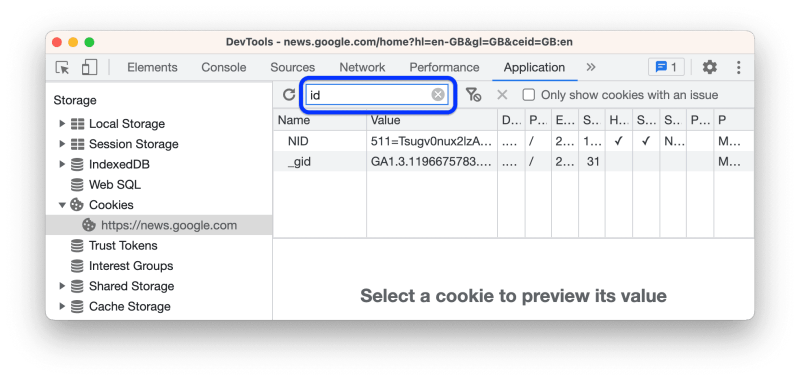
The process of manually adding a cookie involves either modifying the storage directly (via DevTools) or injecting it through an HTTP request header. Chrome’s DevTools provide a visual interface to edit cookies under the Application > Storage > Cookies tab, while the Network tab allows intercepting and modifying outgoing requests to include custom headers. For automation, Chrome’s chrome.cookies API (accessible via extensions) offers programmatic control, though it requires proper permissions and validation to avoid security breaches.
Key Benefits and Crucial Impact
Understanding how to add cookies in Chrome unlocks practical advantages across use cases. For developers, it’s indispensable for debugging authentication flows, testing session persistence, or replicating user environments. Privacy-focused users can enforce granular cookie policies, blocking trackers while preserving essential functionality. Even casual users may need to manually add cookies to restore access after a cache wipe or bypass paywall restrictions. The flexibility of Chrome’s cookie system ensures that solutions exist for nearly every scenario—though each comes with trade-offs between convenience and security.
However, the impact isn’t purely technical. Misconfigured cookies can lead to compliance violations under laws like GDPR or CCPA, where user consent and data minimization are mandatory. Chrome’s evolving cookie policies—such as phasing out third-party cookies—also force websites to adapt, often requiring developers to implement alternative tracking methods. For individuals, the ability to manage cookies responsibly empowers better privacy control, reducing exposure to fingerprinting or cross-site tracking.
—Lou Montulli, inventor of cookies (1994)
"Cookies were meant to simplify web interactions, but their power to track users turned them into a double-edged sword. Today, understanding how to wield them—whether to preserve functionality or protect privacy—is a digital necessity."
Major Advantages
- Session Recovery: Restore lost login sessions or shopping carts by reinserting essential cookies, such as
sessionidoruser_token. - Debugging: Test authentication flows or API responses by modifying cookies in DevTools without redeploying code.
- Privacy Control: Block non-essential cookies (e.g., analytics trackers) while allowing critical ones (e.g.,
auth_tokenfor logged-in states). - Cross-Browser Testing: Simulate cookie behaviors across browsers by inspecting and replicating Chrome’s cookie storage.
- Compliance: Ensure cookie consent mechanisms work as intended by verifying their presence post-acceptance.
Comparative Analysis
| Method | Pros and Cons |
|---|---|
| DevTools (Application > Cookies) | Pros: Real-time editing, visual interface, no extensions required. Cons: Limited to current domain; manual entry risks syntax errors. |
| Extensions (e.g., EditThisCookie) | Pros: Cross-domain editing, bulk operations, UI automation. Cons: Extension permissions may pose security risks; some require payment. |
| HTTP Headers (via DevTools Network Tab) | Pros: Works for cross-site requests; useful for API testing. Cons: Requires intercepting requests; may break HTTPS validation. |
JavaScript Console (document.cookie) |
Pros: Quick for same-domain edits; no UI overhead. Cons: Limited to current tab; syntax errors can corrupt cookies. |

Future Trends and Innovations
Chrome’s cookie landscape is shifting toward stricter privacy defaults, with third-party cookies already blocked in Incognito mode and slated for full deprecation. This push will force developers to adopt alternatives like Storage Access API or server-side session management. Meanwhile, Chrome’s DevTools continue to evolve, with experimental features like cookie storage emulation for service workers. For users, the trend leans toward automated privacy tools—such as Chrome’s built-in cookie consent dialogs—that reduce the need for manual intervention. However, the ability to add cookies in Chrome manually will remain relevant for edge cases, such as legacy systems or custom integrations.
Looking ahead, browser vendors may introduce sandboxed cookie environments, where modifications require explicit user approval. This could further complicate manual cookie management but align with broader privacy movements. For now, Chrome’s balance of flexibility and security ensures that users retain control—though the methods to add cookies in Chrome will likely become more restricted over time.
Conclusion
Chrome’s cookie system is a double-edged sword: powerful enough to enable seamless web experiences but risky when misused. Whether you’re troubleshooting a login issue, enforcing privacy settings, or testing a web app, knowing how to add cookies in Chrome gives you the control to navigate these trade-offs. The methods outlined here—from DevTools to extensions—offer solutions for every scenario, but each demands caution. Always validate changes, respect security policies, and consider alternatives like server-side sessions where possible.
The future of cookies in Chrome is clear: less reliance on third-party tracking, more emphasis on user consent, and tighter integration with modern web standards. For now, the tools exist to manage cookies responsibly. Use them wisely.
Comprehensive FAQs
Q: Can I add cookies for a different domain in Chrome?
A: No, Chrome enforces SameSite policies by default, preventing cross-domain cookie setting unless the cookie is marked SameSite=None; Secure. Attempting to add such cookies via DevTools will fail unless the site explicitly allows it.
Q: Will manually adding cookies break my Chrome profile?
A: Only if you introduce syntax errors (e.g., malformed cookie strings) or overwrite critical system cookies. Always back up your cookies via DevTools or export them before editing. Chrome’s storage is resilient, but corrupt cookies can disrupt sessions.
Q: Are there risks to using cookie-editing extensions?
A: Yes. Extensions with cookie-editing permissions can access sensitive data across sites. Only use reputable tools (e.g., EditThisCookie) and revoke permissions when done. Chrome’s extension model mitigates some risks, but no method is 100% secure.
Q: How do I check if a cookie was successfully added?
A: Use Chrome’s DevTools (Application > Cookies) to verify the cookie’s presence and attributes. Alternatively, reload the page and check for the expected behavior (e.g., a logged-in state). The JavaScript console can also confirm with console.log(document.cookie).
Q: Can I automate cookie addition for multiple sites?
A: Yes, using Chrome extensions with the chrome.cookies API or a custom script with the chrome.storage API. For one-time tasks, a userscript manager like Tampermonkey can inject cookie-setting scripts. However, automation requires careful handling of permissions and error states.
Q: Why does Chrome block some cookies I try to add?
A: Chrome blocks cookies that violate security policies, such as:
- Missing
Secureflag for HTTPS sites. - Invalid
DomainorPathattributes. - Third-party cookies without
SameSite=None; Secure. - Expiration dates in the past.
Leave a Comment
Comments are moderated before appearing. The data you submit is processed according to the Privacy Policy of versiliasolutions.oneagency.co.