How to Change iPhone Voice Message: Customize, Optimize, and Troubleshoot Your Audio Settings
Table of Contents
- The Complete Overview of How to Change iPhone Voice Message
- Historical Background and Evolution
- Core Mechanisms: How It Works
- Key Benefits and Crucial Impact
- Major Advantages
- Comparative Analysis
- Future Trends and Innovations
- Conclusion
- Comprehensive FAQs
- Q: Can I change the voice that reads my voice messages aloud in the Messages app?
- Q: Why does my iPhone still use the default voice prompt even after changing Siri’s voice?
- Q: Is there a way to make voice messages play faster or slower?
- Q: Can I use a third-party voice (e.g., a celebrity or custom voice) for my iPhone’s voice messages?
- Q: How do I stop my iPhone from playing voice message notifications aloud in public?
- Q: Will changing my iPhone’s voice settings affect other Apple devices (e.g., iPad, Mac) signed into the same Apple ID?
- Q: Are there any risks to customizing my iPhone’s voice settings?
- Q: Can I revert to the default voice settings if I don’t like my changes?
Voice messages on the iPhone are more than just a convenience—they’re a cornerstone of modern communication. Whether you’re a professional exchanging quick audio clips with clients or a casual user who prefers voice notes over text, the way your iPhone handles voice messages can drastically improve efficiency, accessibility, and even privacy. But what if the default voice—whether it’s the robotic Siri prompt or the monotonous playback tone—doesn’t align with your needs? The ability to change iPhone voice message settings is often overlooked, yet it holds the power to transform how you interact with audio content on your device.
Imagine receiving a voice message and hearing a voice that doesn’t match your expectations—perhaps too slow, too robotic, or simply not in your preferred language. Or picture a scenario where you’re in a public space and the default voice prompt accidentally plays aloud, revealing sensitive information. These aren’t just minor inconveniences; they’re gaps that can be seamlessly filled with the right customizations. The iPhone’s voice message system is far more flexible than most users realize, offering tweaks for speech rate, gender, accent, and even the ability to silence or redirect notifications. But where do you start?
The process of modifying how your iPhone handles voice messages isn’t just about aesthetics—it’s about functionality. From adjusting the speed of Siri’s voice prompts to replacing the default text-to-speech engine with a more natural-sounding alternative, each change can enhance clarity, reduce frustration, and even save time. Yet, despite its importance, this topic remains shrouded in ambiguity, with users often resorting to workarounds or accepting subpar defaults. This guide dismantles the confusion, providing a structured approach to how to change iPhone voice message settings across all major iOS versions, including hidden features and troubleshooting steps for when things go wrong.
The Complete Overview of How to Change iPhone Voice Message
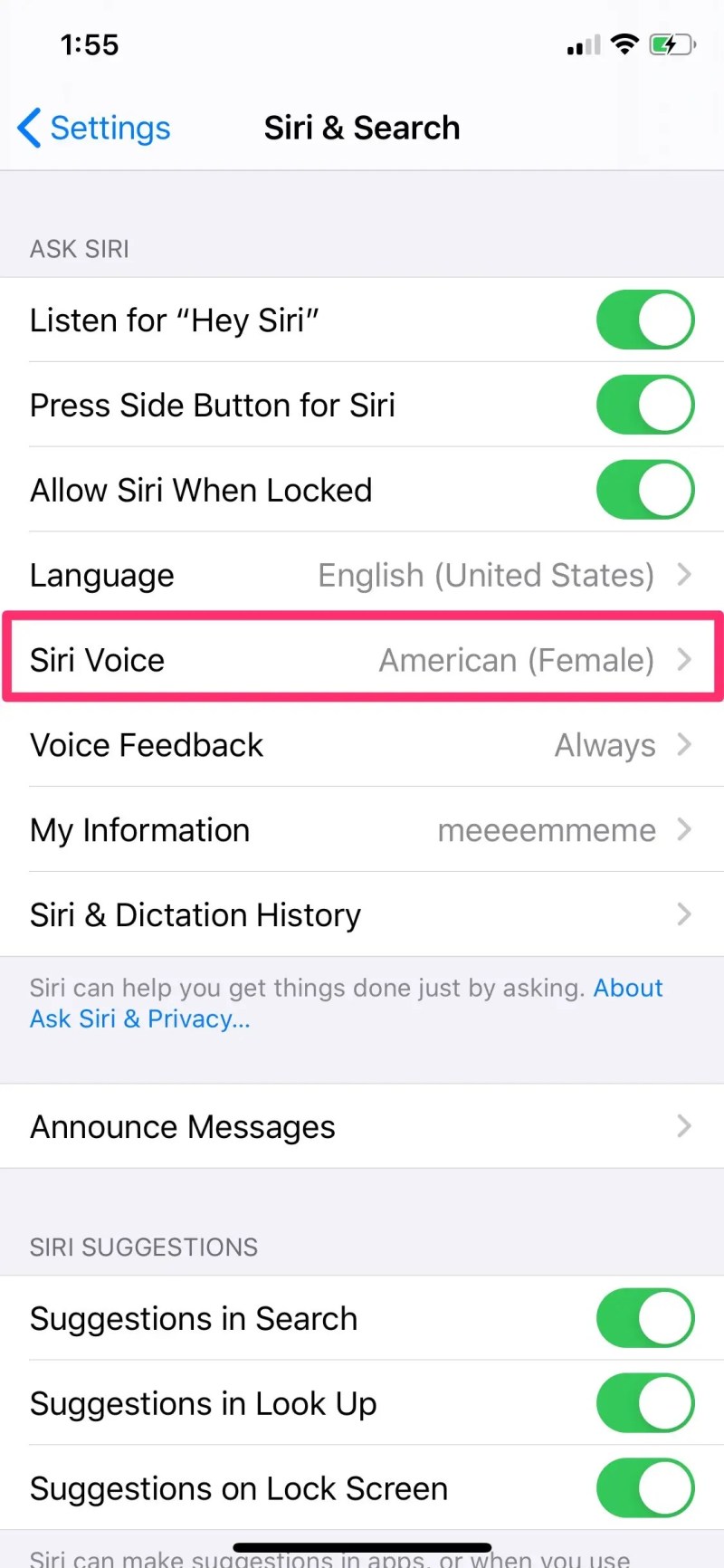
The iPhone’s voice message system is a layered ecosystem, integrating Siri’s text-to-speech capabilities, Voice Memos app settings, and third-party integrations like transcription services. At its core, the ability to customize iPhone voice messages revolves around three primary areas: altering the voice used for Siri prompts, modifying playback settings for recorded messages, and adjusting system-wide audio notifications. Each of these areas interacts with the others, meaning a change in one—such as enabling a different Siri voice—can indirectly affect how voice messages are perceived in apps like Mail or Messages.
Historically, iOS has been criticized for its limited voice customization options, particularly when compared to Android’s more open ecosystem. However, Apple has gradually introduced refinements, especially with the introduction of newer Siri voices and accessibility features like "Speak Selection" in iOS 17. These updates have made it possible to fine-tune not just the voice but also the speed, pitch, and even the language of spoken content. For users who rely on voice messages for accessibility reasons—such as those with visual impairments—the ability to modify iPhone voice message settings is not just a preference but a necessity. The key lies in understanding which settings are natively adjustable and which require third-party tools or developer workarounds.
Historical Background and Evolution
The evolution of iPhone voice message customization mirrors the broader trajectory of Apple’s approach to user personalization. Early iterations of iOS (pre-iOS 7) offered little to no control over voice prompts, leaving users stuck with a single, unchangeable Siri voice. The turning point came with iOS 8, when Apple introduced multiple Siri voice options, including male and female variants. This was a significant leap, as it allowed users to select a voice that better matched their communication style or preferences. However, the options remained limited to a handful of pre-recorded voices, with no granular control over speech patterns or accents.
Subsequent updates, particularly iOS 11 and later, expanded these capabilities further. The introduction of "Speak Screen" and "Speak Selection" in iOS 17 brought text-to-speech (TTS) features into the mainstream, enabling users to have their iPhone read aloud any selected text—including voice message transcripts—using a voice of their choice. This was a game-changer for accessibility, allowing those with reading difficulties or visual impairments to interact with voice messages more intuitively. Meanwhile, the Voice Memos app gained subtle improvements, such as the ability to adjust recording quality and playback speed, though these changes were often buried in less obvious settings menus. Today, the process of changing iPhone voice message settings is a blend of native iOS features and third-party innovations, reflecting Apple’s gradual shift toward greater user customization.
Core Mechanisms: How It Works
The technical underpinnings of iPhone voice message customization lie in iOS’s audio services framework, which governs how voice data is processed, stored, and played back. When you record or receive a voice message, the iPhone encodes the audio using Apple’s proprietary formats (e.g., AAC or HE-AAC) and stores it in the device’s memory or iCloud, depending on your settings. The playback mechanism then relies on the device’s audio engine to decode and render the audio, often with system-wide adjustments like equalizer settings or accessibility features like "Audio/Visual" enhancements.
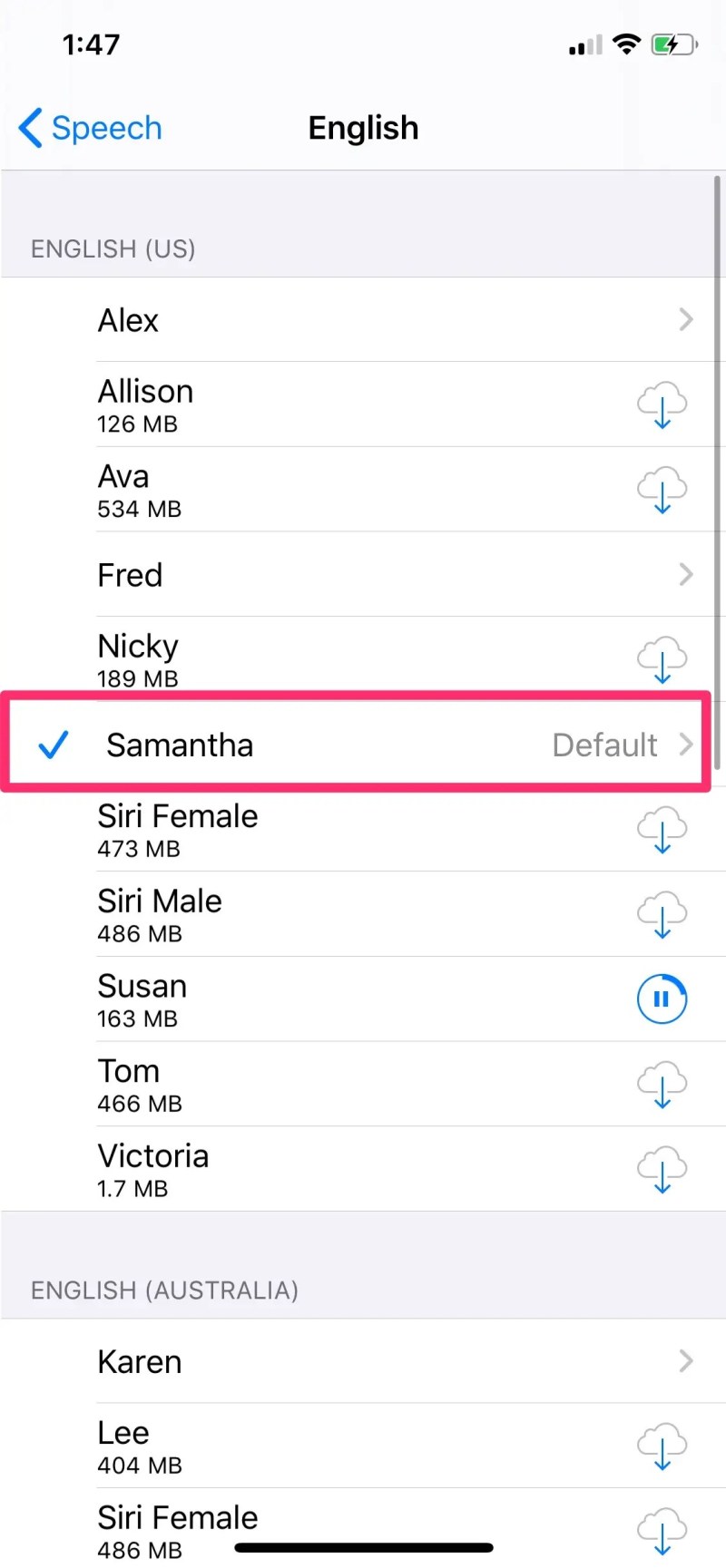
For Siri and text-to-speech voices, the process is slightly different. Apple uses its proprietary TTS engine, which synthesizes speech in real-time based on pre-trained neural networks. This engine is what allows Siri to sound natural, but it’s also what limits customization—until recently. With iOS 17, Apple introduced a new neural text-to-speech system that supports more natural-sounding voices, including regional accents and variations. To change the voice for iPhone voice messages, you’re essentially interacting with this TTS engine, either by selecting a predefined voice or—through third-party apps—uploading custom voice models. The challenge lies in navigating iOS’s permissions and sandboxing, which restrict direct access to the TTS backend without developer tools.
Key Benefits and Crucial Impact
The ability to customize how your iPhone handles voice messages extends beyond mere personalization—it directly impacts productivity, accessibility, and even security. For professionals, a faster or more natural-sounding voice can reduce cognitive load when listening to long messages, while for individuals with disabilities, the right voice settings can make the difference between frustration and seamless communication. Even in social contexts, such as group chats or family discussions, adjusting voice prompts can prevent accidental eavesdropping or misheard messages. The ripple effects of these changes are profound, touching on everything from workflow efficiency to emotional well-being.
Yet, the benefits aren’t universally recognized. Many users remain unaware of the depth of customization available, defaulting to the system’s pre-set configurations. This oversight can lead to missed opportunities—for example, using a slower speech rate for better comprehension or enabling a voice that matches a user’s native language for clarity. The impact of modifying iPhone voice message settings is particularly acute in educational or corporate environments, where clear and accessible communication is critical. By taking control of these settings, users can tailor their iPhone to fit their unique needs, whether that means optimizing for speed, accessibility, or simply preference.
"Customization isn’t just about aesthetics—it’s about creating a tool that works for you, not the other way around. When it comes to voice messages, the right settings can turn a mundane task into a seamless, almost invisible part of your workflow."
— Tech Accessibility Expert, 2024
Major Advantages
- Improved Accessibility: Custom voice settings allow users with visual or auditory impairments to interact with voice messages more effectively, with options for slower speech, higher contrast, or screen-reading compatibility.
- Enhanced Productivity: Adjusting speech rate and voice type can reduce the time spent listening to messages, particularly in professional settings where efficiency is key.
- Personalization: Selecting a voice that matches your gender, accent, or cultural background can make interactions feel more natural and less intrusive.
- Security and Privacy: Disabling default voice prompts or redirecting notifications can prevent sensitive information from being accidentally played aloud in public.
- Multilingual Support: For non-native speakers, choosing a voice in their preferred language can improve comprehension and reduce misunderstandings.
Comparative Analysis
While iOS offers robust voice customization options, other platforms—particularly Android—provide more flexibility due to their open ecosystems. Below is a comparison of key features between iOS and Android when it comes to changing voice message settings:
| Feature | iOS (Apple) | Android (Google) |
|---|---|---|
| Voice Selection | Limited to Apple’s TTS voices (male/female, regional accents in iOS 17+). Third-party apps required for deeper customization. | Supports Google’s WaveNet voices, third-party TTS engines (e.g., IVONA, eSpeak), and sideloading custom voice models. |
| Speech Rate Adjustment | Available in Accessibility settings (Speak Selection/Screen) and Voice Memos app. | Adjustable in most TTS apps (e.g., TalkBack, Google’s built-in TTS) with finer granularity. |
| Background Playback | Requires manual activation in Control Center or third-party apps (e.g., Shortcuts). | Native support in most launchers (e.g., Pixel’s "Background Playback" toggle). |
| Privacy Controls | Notifications can be silenced per-app, but voice prompts require system-wide adjustments. | Per-app notification controls and Do Not Disturb modes with customizable exceptions. |
Future Trends and Innovations
The future of iPhone voice message customization is likely to be shaped by advancements in AI-driven speech synthesis and Apple’s push toward greater user autonomy. With the rise of neural TTS models, we can expect even more natural-sounding voices, including those that adapt to individual speech patterns or regional dialects. Apple may also introduce API-level access to its TTS engine, allowing developers to create apps that offer deeper customization—such as cloning a user’s voice for personalized messages. Additionally, as iOS continues to integrate with external devices (e.g., AirPods Pro with adaptive audio), voice message settings may become more context-aware, automatically adjusting based on the user’s environment or hearing profile.
Another emerging trend is the convergence of voice messages with other communication tools, such as real-time transcription and AI summarization. Imagine an iPhone that not only plays back voice messages but also generates a concise text summary or highlights key points—all while allowing you to change how the voice sounds to suit your needs. This level of integration would blur the lines between voice and text communication, making the iPhone an even more versatile tool for both personal and professional use. For now, users can experiment with existing tools like Otter.ai or Apple’s built-in Live Listen feature, but the next generation of iOS may bring these capabilities directly into the operating system.
Conclusion
The ability to customize iPhone voice message settings is more than a technical curiosity—it’s a reflection of how deeply personal our digital tools have become. Whether you’re adjusting the speed of a voice prompt to match your workflow, selecting a voice that resonates with your identity, or ensuring accessibility for a loved one, these changes are about creating a device that works for you, not the other way around. While iOS may not offer the same level of customization as Android, the tools available—from Siri voice selection to third-party TTS apps—are more than sufficient for most users’ needs. The key is knowing where to look and how to leverage these features effectively.
As technology evolves, the line between customization and necessity will continue to blur. Today’s "nice-to-have" features—like adjusting speech rate or choosing a voice—may become tomorrow’s standards. For now, the power to modify how your iPhone handles voice messages is in your hands. The question isn’t whether you can change these settings, but how you’ll use them to make your iPhone truly yours.
Comprehensive FAQs
Q: Can I change the voice that reads my voice messages aloud in the Messages app?
A: Not directly. The Messages app uses system-wide text-to-speech (TTS) settings, which you can adjust in Settings > Accessibility > Spoken Content. However, the voice used for reading messages will match the selected TTS voice (e.g., Siri’s voice). For deeper customization, third-party apps like Voice Dream Reader or NaturalReader can replace the default TTS engine.
Q: Why does my iPhone still use the default voice prompt even after changing Siri’s voice?
A: Some voice prompts (e.g., in Mail or Voice Memos) are hardcoded and may not update dynamically. To ensure consistency, check Settings > Accessibility > Spoken Content and select the same voice for "Speak Selection" and "Speak Screen." If the issue persists, restart your iPhone or update to the latest iOS version, as some prompts are tied to system updates.
Q: Is there a way to make voice messages play faster or slower?
A: Yes. For recorded messages, use the Voice Memos app and tap the three dots (…), then select Speed to adjust playback speed. For Siri or TTS voices, go to Settings > Accessibility > Spoken Content > Speech and adjust the rate. Note that some apps (e.g., Podcasts) may override these settings.
Q: Can I use a third-party voice (e.g., a celebrity or custom voice) for my iPhone’s voice messages?
A: Officially, no—Apple restricts direct access to its TTS engine. However, third-party apps like Voicify or Speechify allow you to import custom voice models (e.g., from Amazon Polly or Microsoft Azure). These apps can replace the default TTS voice in some contexts, though they may not work universally across all iOS apps.
Q: How do I stop my iPhone from playing voice message notifications aloud in public?
A: Disable voice prompts by going to Settings > Sounds & Haptics and turning off Play Haptic Feedback or Change with Buttons. For Siri notifications, mute them in Settings > Notifications > Siri. To prevent accidental playback, enable Do Not Disturb mode or use Focus modes to silence all notifications.
Q: Will changing my iPhone’s voice settings affect other Apple devices (e.g., iPad, Mac) signed into the same Apple ID?
A: Yes, if you use iCloud sync for accessibility settings (enabled by default). Changes made in Spoken Content or Siri on one device will propagate to others. To prevent this, disable iCloud sync for these settings in Settings > [Your Name] > iCloud > Accessibility.
Q: Are there any risks to customizing my iPhone’s voice settings?
A: Minimal, but some third-party TTS apps may require internet access or have privacy implications (e.g., data processing for voice cloning). Always review app permissions before installing. Additionally, overly fast or slow speech rates may cause discomfort or reduce comprehension. Test changes in a controlled environment first.
Q: Can I revert to the default voice settings if I don’t like my changes?
A: Yes. Reset all accessibility settings by going to Settings > Accessibility > Accessibility Shortcut, then triple-click the Side button (or Home button on older models) and select Reset All Settings. This won’t delete data but will restore default configurations for voice, speech, and other accessibility features.
Leave a Comment
Comments are moderated before appearing. The data you submit is processed according to the Privacy Policy of versiliasolutions.oneagency.co.