How to Check Apple ID: The Definitive Guide to Verify Your Digital Identity
Table of Contents
- The Complete Overview of How to Check Apple ID
- Historical Background and Evolution
- Core Mechanisms: How It Works
- Key Benefits and Crucial Impact
- Major Advantages
- Comparative Analysis
- Future Trends and Innovations
- Conclusion
- Comprehensive FAQs
- Q: Can I check my Apple ID without knowing the password?
- Q: What if my Apple ID email is different from my iCloud email?
- Q: How do I check my Apple ID on a Mac?
- Q: Can I verify my Apple ID on a Windows PC?
- Q: What should I do if I can’t remember my Apple ID email?
- Q: How often should I check my Apple ID for security?
Your Apple ID isn’t just a username—it’s the digital key to your entire ecosystem. From App Store purchases to iCloud backups, forgetting how to verify it can lock you out of critical services. The frustration of typing in a wrong password or realizing you’ve misplaced your recovery email is all too familiar. What if you could instantly confirm your Apple ID status without resetting anything? The solution lies in understanding the built-in tools Apple provides, many of which remain hidden behind simple interface tweaks.
Consider this scenario: You’re about to restore a backup on a new iPhone, but the device insists you sign in. You recall creating an Apple ID years ago but can’t remember the email or password. The default recovery process requires personal details—security questions you’ve long forgotten. Worse, Apple’s two-factor authentication now makes password resets nearly impossible without device access. The good news? There are legitimate ways to check your Apple ID without triggering security measures, provided you know where to look.
Apple’s design philosophy prioritizes security over convenience, which means many users overlook the most straightforward verification methods. A single misstep—like assuming your Apple ID matches your iCloud email—can lead to hours of unnecessary troubleshooting. The truth is, Apple has embedded verification options across its devices, from iPhones to Macs, but they’re rarely highlighted in official documentation. This guide cuts through the noise to show you exactly how to check your Apple ID in under a minute, whether you’re confirming an old account or troubleshooting a locked-out scenario.
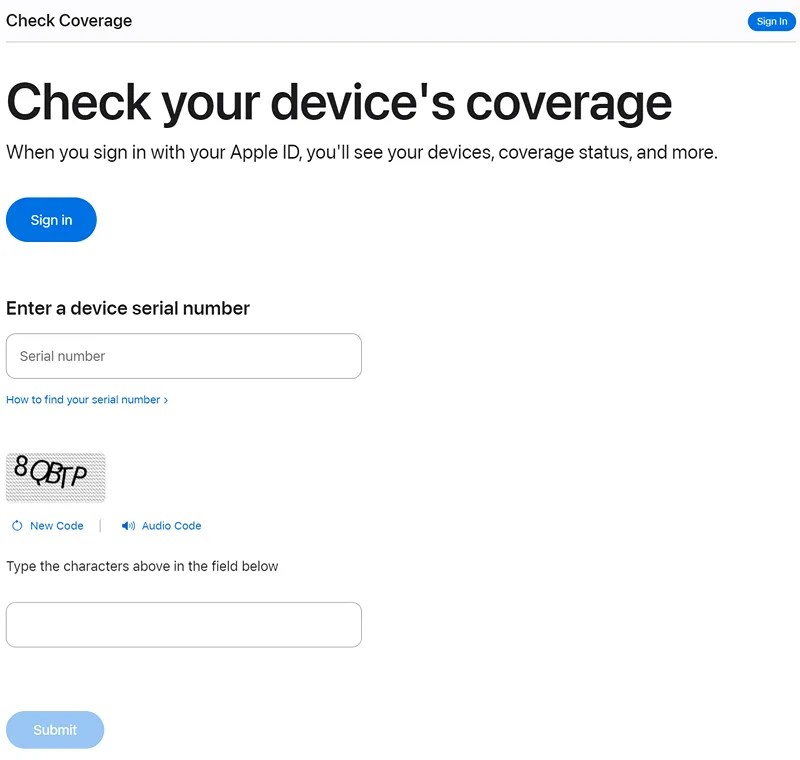
The Complete Overview of How to Check Apple ID
Apple IDs function as the backbone of Apple’s digital services, serving as the primary identifier for authentication across all Apple devices and platforms. Whether you’re managing App Store purchases, syncing data via iCloud, or accessing Apple Music, your Apple ID is the linchpin that ties everything together. The ability to verify this account—without triggering security protocols—is essential for both routine maintenance and emergency recovery. Unlike traditional email accounts, Apple IDs often operate silently in the background, making it easy to overlook their central role until a critical service fails.
Most users default to the "Forgot Apple ID or password?" link when locked out, but this path is fraught with complications, especially with two-factor authentication enabled. The smarter approach is to proactively check your Apple ID through native system tools, which can reveal critical details like associated emails, payment methods, and security settings. For example, an iPhone’s Settings app contains a direct Apple ID verification section that lists all linked devices, recovery emails, and even trusted phone numbers—information that’s invaluable during a recovery attempt. Understanding these tools isn’t just about troubleshooting; it’s about regaining control of your digital identity before a crisis arises.
Historical Background and Evolution
The concept of an Apple ID traces back to 2001, when Apple introduced the iTunes Store as a digital media marketplace. At the time, users needed an account to purchase music, but the system was rudimentary compared to today’s standards. By 2007, with the launch of the iPhone, Apple merged the iTunes Store account with mobile device management, birthing the modern Apple ID. This evolution marked a shift from a single-purpose account to a universal identifier for all Apple services, including the App Store, iCloud, and Apple Pay.
Fast-forward to 2015, when Apple rolled out two-factor authentication (2FA) as a security upgrade. While this move significantly reduced fraudulent access, it also complicated account recovery for users who hadn’t linked a trusted device. The introduction of iCloud Keychain in 2016 further blurred the lines between Apple IDs and third-party credentials, as users could now sync passwords across devices. Today, an Apple ID isn’t just an account—it’s a digital ecosystem manager, and its verification process reflects that complexity. Recognizing how this system has evolved helps explain why some older methods of checking an Apple ID (like using a recovery key) are no longer viable, while newer tools, like the Apple ID account page, have become indispensable.
Core Mechanisms: How It Works
At its core, an Apple ID is a unique identifier tied to an email address, which serves as the primary recovery point. When you create an account, Apple generates a secure password and associates it with your email, then encrypts this data using industry-standard protocols. The verification process leverages multiple layers of authentication, including device recognition (via 2FA) and biometric confirmation (Face ID or Touch ID). For users with multiple Apple devices, the system cross-references all logged-in sessions to ensure consistency.
What often confuses users is the distinction between an Apple ID and an iCloud email. While they can be the same, they don’t have to be—you might use a personal Gmail as your Apple ID but store iCloud data under a different address. This separation is why simply checking your email inbox won’t always reveal your Apple ID. Instead, Apple provides dedicated verification tools, such as the Apple ID account page (account.apple.com), which aggregates all linked services, payment details, and security settings. Understanding this separation is key to avoiding common pitfalls, like assuming your Apple ID is the same as your iCloud email when it isn’t.
Key Benefits and Crucial Impact
Verifying your Apple ID isn’t just a technicality—it’s a proactive step toward digital security and operational efficiency. For businesses managing employee devices or families sharing an Apple ecosystem, knowing how to check an Apple ID can prevent unauthorized access and streamline account management. Even for individual users, the ability to confirm an Apple ID before a service outage or device upgrade can save hours of frustration. The ripple effects of neglecting this verification are far-reaching: from failed iCloud backups to blocked App Store purchases, the consequences of an unverified or compromised Apple ID can disrupt daily digital life.
Beyond troubleshooting, checking your Apple ID regularly helps identify vulnerabilities, such as unknown devices linked to your account or suspicious login attempts. Apple’s security features, like Login Notifications, only work if you’ve enabled them—and the first step is confirming your account details. For users who’ve never intentionally checked their Apple ID, the process often reveals surprises, like old payment methods still active or recovery emails that are no longer in use. This visibility is the foundation of responsible digital hygiene.
"An Apple ID isn’t just an account—it’s the digital skeleton key to your entire Apple ecosystem. Neglecting to verify it is like leaving your house keys under the doormat: it’s convenient until it isn’t."
— Tech Security Analyst, 2023
Major Advantages
- Instant Access Verification: Confirm whether your Apple ID is active across all devices without triggering security checks, using built-in system tools.
- Recovery Readiness: Identify linked recovery emails and trusted devices before an emergency lockout, reducing downtime during account recovery.
- Security Audit: Detect unauthorized devices, suspicious login activity, or outdated payment methods that could expose your account to fraud.
- Cross-Platform Sync: Ensure all Apple services (App Store, iCloud, Apple Music) are using the same verified Apple ID, preventing service disruptions.
- Family Sharing Control: For shared accounts, verify which family members are linked and manage permissions without resetting the entire account.
Comparative Analysis
| Method | Effectiveness |
|---|---|
| Apple ID Account Page (account.apple.com) | Highest accuracy; displays all linked services, devices, and security settings. Requires password but avoids triggering 2FA if used correctly. |
| iPhone/iPad Settings App | Quick verification of name, Apple ID email, and linked devices. No password required, but limited to device-specific details. |
| Mac System Preferences | Similar to iOS but includes iCloud storage details. Useful for users managing multiple devices. |
| App Store or iTunes | Shows purchase history and payment methods but doesn’t reveal full Apple ID details unless signed in. |

Future Trends and Innovations
The next generation of Apple ID verification will likely integrate more deeply with biometric authentication, reducing reliance on passwords entirely. Apple’s ongoing investments in Face ID and Touch ID suggest that physical verification—already used for purchases—could expand to account recovery scenarios. Additionally, advancements in AI-driven fraud detection may allow Apple to automatically flag and block suspicious verification attempts before they succeed, further tightening security without inconveniencing legitimate users.
Another emerging trend is the unification of Apple IDs with third-party identity providers, such as Google or Microsoft accounts. While this would simplify cross-platform logins, it could also introduce new verification challenges if those external services experience outages. For now, Apple’s focus remains on refining its existing tools, such as the Apple ID account page, to make verification faster and more intuitive. As services like Apple Pay and Apple TV+ grow in popularity, the stakes for secure Apple ID management will only rise, making proactive verification an even more critical practice.
Conclusion
Checking your Apple ID doesn’t have to be a reactive measure—it should be a routine part of digital maintenance, like updating software or backing up data. The tools Apple provides are designed to be accessible, but their effectiveness hinges on user awareness. By mastering the verification process, you’re not just troubleshooting potential issues; you’re fortifying your digital identity against the unexpected. Whether you’re confirming an old account, securing a family sharing setup, or preparing for a device upgrade, knowing how to check your Apple ID gives you the confidence to navigate Apple’s ecosystem without friction.
The key takeaway is simplicity: Apple has embedded verification options across its devices, but they’re often overlooked until a problem arises. The methods outlined here—from the Apple ID account page to device-specific settings—are all you need to confirm your account status in minutes. Don’t wait until a locked-out scenario forces you to scramble. Take control of your digital identity today by verifying your Apple ID proactively.
Comprehensive FAQs
Q: Can I check my Apple ID without knowing the password?
A: Yes. On an iPhone or iPad, go to Settings > [Your Name] > Name, Phone Numbers, Email. This section displays your Apple ID email without requiring a password. For a full account overview, you’ll need to sign in at account.apple.com, but the basic email is visible without authentication.
Q: What if my Apple ID email is different from my iCloud email?
A: This is common. Your Apple ID email is the primary identifier for authentication, while your iCloud email is where iCloud data (like photos or notes) is stored. To check both, use the Settings > [Your Name] method on iOS or Apple Menu > System Settings > Apple ID on macOS. If they differ, you can update your iCloud email separately in iCloud settings.
Q: How do I check my Apple ID on a Mac?
A: Open System Settings > Apple ID (or System Preferences > Apple ID on older macOS versions). This page shows your Apple ID email, name, and linked services. For advanced details like payment methods or security settings, click Manage to visit the Apple ID account page.
Q: Can I verify my Apple ID on a Windows PC?
A: Indirectly. While Apple doesn’t offer a native Windows tool, you can check your Apple ID by opening a web browser and visiting account.apple.com. Sign in to view full account details, including devices, subscriptions, and security settings. If you’ve never used the account page, this is the most comprehensive way to verify your Apple ID from any device.
Q: What should I do if I can’t remember my Apple ID email?
A: Use Apple’s Apple ID lookup tool at https://iforgot.apple.com. Enter your first name, last name, and phone number (or recovery email) to retrieve your Apple ID. If you’ve enabled two-factor authentication, you’ll need access to a trusted device to complete the recovery. Avoid creating a new Apple ID if possible, as this can lead to duplicate accounts and service disruptions.
Q: How often should I check my Apple ID for security?
A: At minimum, review your Apple ID account details (via account.apple.com) every 3–6 months to check for unknown devices, unauthorized purchases, or changes to recovery information. Enable Login Notifications in Apple ID settings to get alerts for new devices or password changes, which can help you spot security issues early.
Leave a Comment
Comments are moderated before appearing. The data you submit is processed according to the Privacy Policy of versiliasolutions.oneagency.co.