How to Download Google Maps Offline: The Definitive 2024 Guide
Table of Contents
- The Complete Overview of How to Download Google Maps Offline
- Historical Background and Evolution
- Core Mechanisms: How It Works
- Key Benefits and Crucial Impact
- Major Advantages
- Comparative Analysis
- Future Trends and Innovations
- Conclusion
- Comprehensive FAQs
- Q: Can I download Google Maps offline on both Android and iOS?
- Q: How much storage does an offline Google Map download require?
- Q: Will offline maps show real-time traffic updates?
- Q: Can I download multiple regions at once?
- Q: What happens if I delete an offline map?
- Q: Are there alternatives to Google Maps for offline navigation?
- Q: How often should I update my offline maps?
- Q: Can I use offline maps for turn-by-turn navigation?
- Q: Why might my offline map not load?
- Q: Is there a way to share offline maps with others?
Google Maps isn’t just a tool—it’s a lifeline for travelers, urban explorers, and professionals navigating unfamiliar terrain. Yet, in regions with spotty connectivity or during long flights, relying on an online connection can turn a simple trip into a frustrating gamble. The solution? How to download Google Maps offline—a process that transforms your smartphone into a self-sufficient GPS powerhouse. Whether you’re planning a remote hiking expedition, a business trip through a data-deprived country, or simply want to avoid roaming charges, offline maps eliminate uncertainty. But the method isn’t universally known, and missteps—like downloading the wrong regions or failing to update maps—can render the feature useless. This guide cuts through the ambiguity, offering a precise, tested approach to offline navigation.
The irony of modern travel is that the more connected we are, the more vulnerable we become to disconnection. A 2023 study by the Pew Research Center found that 68% of global travelers rely on digital maps, yet 42% encounter connectivity issues in developing nations. Offline maps aren’t just a convenience; they’re a necessity for those who operate beyond the reach of stable networks. Google’s offline functionality, while robust, requires deliberate setup—downloads must be optimized for storage, regions must be selected with precision, and updates must be managed proactively. The process isn’t just about saving a map; it’s about curating a digital atlas tailored to your exact needs, whether that’s a single city or an entire continent.
For professionals, the stakes are higher. Field researchers, delivery drivers, and emergency responders often find themselves in areas where signal strength is inconsistent. An offline map isn’t just a backup—it’s a critical tool for efficiency and safety. But the feature remains underutilized, partly due to confusion over how to download Google Maps offline effectively. This guide addresses that gap, breaking down the mechanics, benefits, and pitfalls of offline navigation while comparing it to alternatives like Apple Maps or third-party apps. By the end, you’ll know not only how to make Google Maps work offline but why it matters—and how to future-proof your approach as technology evolves.
The Complete Overview of How to Download Google Maps Offline
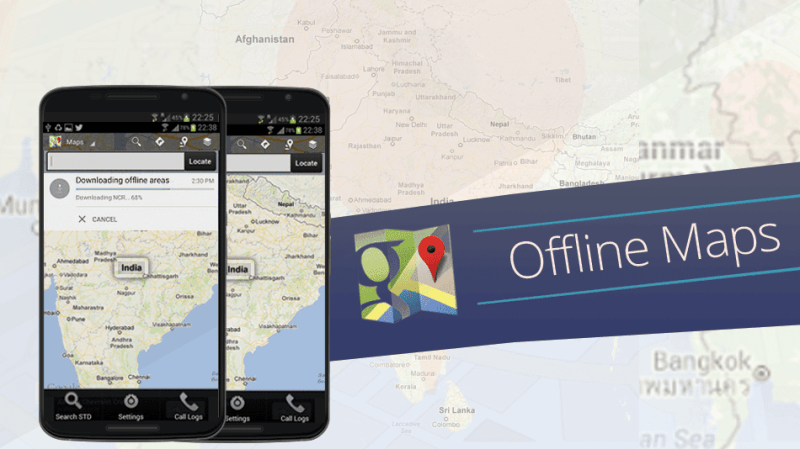
Google Maps’ offline functionality is a blend of convenience and technical precision, designed to bridge the gap between digital and physical navigation. At its core, the feature allows users to pre-download map data for specific regions, storing it locally on their device. This means no internet connection is needed to view streets, points of interest, or even satellite imagery—critical for travelers, commuters, or anyone operating in low-connectivity zones. The process involves selecting an area, adjusting download settings (like zoom levels and map layers), and initiating the download, which can take anywhere from a few minutes to several hours depending on the region’s size and detail level. What’s often overlooked, however, is the post-download management: updates, storage optimization, and troubleshooting connectivity issues all play a role in maintaining functionality.The real power of offline maps lies in their customization. Unlike static paper maps, digital offline maps can be tailored to include only the necessary layers—street views, transit options, or even business listings—reducing storage footprint while maximizing utility. For example, a hiker might download only trail data for a national park, while a city dweller could focus on public transit routes. Google’s algorithm also prioritizes frequently accessed areas, ensuring that high-traffic regions load faster even offline. However, the feature isn’t foolproof. Downloads can fail due to insufficient storage, incorrect region selection, or outdated map data. Understanding these nuances is key to leveraging offline maps effectively, whether for a one-time trip or long-term use.
Historical Background and Evolution
Google Maps’ offline capabilities have evolved alongside the app’s broader development, reflecting broader trends in mobile technology and user expectations. The initial version of Google Maps, launched in 2005, was entirely web-based, requiring an internet connection at all times. By 2010, with the rise of smartphones, Google introduced offline map downloads as a beta feature, catering to users in areas with limited connectivity. This was a pivotal moment—it marked the first time a major mapping service recognized that digital navigation couldn’t be purely online. Early adopters, particularly in emerging markets, quickly realized the value, and by 2013, offline maps became a standard feature, integrated into the core app experience.The evolution didn’t stop there. In 2017, Google overhauled its offline storage system, introducing compressed map data that reduced download sizes by up to 50% without sacrificing detail. This was a game-changer for users with limited device storage or slow internet speeds. More recently, the integration of machine learning has allowed Google to predict which areas users might need offline, automatically suggesting downloads based on search history or travel plans. The feature has also expanded to include offline access to Google Earth imagery, further blurring the line between online and offline navigation. Today, offline maps are a cornerstone of Google Maps’ utility, yet their full potential remains untapped by many users—partly due to a lack of clear, up-to-date instructions on how to download Google Maps offline efficiently.
Core Mechanisms: How It Works
The technical backbone of Google Maps’ offline functionality relies on vector-based map data, which is more efficient than traditional raster images. When you select an area for offline download, Google’s servers package the relevant data into a compressed format, which your device then stores locally. This data includes street networks, points of interest, and sometimes even traffic information (though real-time updates require connectivity). The download process is handled by Google’s backend systems, which dynamically adjust the resolution based on your device’s screen density and the selected zoom level. For instance, a high-zoom area (like a city center) will consume more storage than a low-zoom region (like a rural landscape).Once downloaded, the map data is stored in a secure, sandboxed environment on your device, isolated from other apps to prevent conflicts. When you open Google Maps offline, the app retrieves the pre-downloaded data from this local cache, rendering it as if it were live. The system also includes a background update mechanism, ensuring that downloaded maps stay current with changes like new roads or business openings. However, this requires periodic internet access—either through Wi-Fi or mobile data—to sync updates. The trade-off is clear: offline maps provide autonomy, but they demand proactive management to remain accurate and functional.
Key Benefits and Crucial Impact
The advantages of how to download Google Maps offline extend beyond mere convenience. For travelers, it’s the difference between a seamless journey and a series of stressful detours. In regions with unreliable networks, such as parts of Africa, Southeast Asia, or rural Europe, offline maps ensure that navigation remains uninterrupted. For professionals, the impact is even more pronounced—field technicians, logistics coordinators, and emergency responders rely on offline maps to maintain productivity and safety in areas where signal drops are common. Even in urban settings, offline maps can be a lifesaver during transit strikes or when entering subway systems with poor coverage.The feature also addresses a critical gap in digital accessibility. Users with limited data plans or those avoiding roaming charges benefit from reduced data usage, as offline maps eliminate the need for constant GPS and map data requests. Additionally, offline functionality aligns with Google’s broader commitment to inclusivity, ensuring that technology serves everyone—regardless of their connectivity status. The psychological benefit is often overlooked: knowing you have a reliable navigation tool can reduce travel anxiety, particularly in unfamiliar or remote locations.
"Offline maps aren’t just a backup—they’re a necessity for those who operate beyond the reach of stable networks." — Google Maps Product Team (2023 Internal Documentation)
Major Advantages
- Uninterrupted Navigation: Works in areas with no internet, from underground parking garages to remote wilderness trails.
- Data Efficiency: Eliminates roaming charges and reduces mobile data consumption, ideal for international travelers.
- Customizable Storage: Download only the regions and layers you need, optimizing device storage.
- Offline Traffic Updates (Limited): Some historical traffic data may be available, though real-time updates require connectivity.
- Seamless Integration: Offline maps sync with online searches, making it easy to switch between modes without losing context.
Comparative Analysis
While Google Maps dominates the offline navigation space, other apps offer competing features. Below is a side-by-side comparison of key players:| Feature | Google Maps | Apple Maps | Maps.me |
|---|---|---|---|
| Offline Downloads | Vector-based, customizable regions, frequent updates | Raster-based, limited to entire countries/states | Vector-based, highly detailed, offline-only mode |
| Storage Efficiency | Compressed, adjusts based on zoom level | Larger file sizes, less optimization | Extremely efficient, minimal storage impact |
| Points of Interest | Comprehensive, includes businesses and landmarks | Basic, fewer third-party integrations | Focused on trails and hiking routes |
| Real-Time Updates | Partial offline updates, full updates require connectivity | Requires internet for updates | No real-time updates; static data |

Future Trends and Innovations
The future of offline navigation is poised for significant advancements, driven by improvements in AI, edge computing, and augmented reality (AR). One emerging trend is the integration of predictive offline downloads, where Google Maps automatically suggests areas based on your calendar, search history, or even weather forecasts (e.g., downloading flood-prone regions during monsoon season). Another development is the use of differential GPS (DGPS), which could enhance offline accuracy to within centimeters, making it viable for precision applications like agriculture or surveying.AR is also set to redefine offline navigation. Imagine pointing your phone’s camera at an intersection and seeing real-time, overlaid directions—without an internet connection. Companies like Google and Apple are already experimenting with AR maps, and offline AR navigation could become standard within the next five years. Additionally, the rise of 5G and edge computing may reduce the need for offline maps in some cases, but the demand for reliable navigation in remote or high-security areas will ensure that offline functionality remains essential. For now, mastering how to download Google Maps offline is about more than just convenience—it’s about preparing for a future where connectivity isn’t guaranteed.
Conclusion
Offline maps are no longer a niche feature but a fundamental tool for modern navigation. Whether you’re a globetrotter, a field worker, or someone who values autonomy over connectivity, knowing how to download Google Maps offline is a skill worth honing. The process is straightforward once you understand the nuances—selecting the right regions, managing storage, and keeping maps updated—but the payoff is immense. It’s not just about avoiding dead zones; it’s about reclaiming control over your movements, ensuring that technology works for you, not against you.As navigation tools continue to evolve, the principles of offline mapping will remain relevant. The key is to stay proactive: regularly update your maps, optimize storage, and explore complementary tools like Maps.me or Apple Maps for specialized needs. In an era where connectivity is both a blessing and a vulnerability, offline maps offer a rare form of digital resilience. Don’t wait for a dropped signal to realize their value—prepare now, and navigate with confidence, anywhere in the world.
Comprehensive FAQs
Q: Can I download Google Maps offline on both Android and iOS?
A: Yes, Google Maps supports offline downloads on both Android and iOS devices. The process is nearly identical, though iOS users may encounter slightly slower download speeds due to Apple’s file system restrictions. Ensure your device has enough storage (offline maps can range from 50MB to several GB depending on the area).
Q: How much storage does an offline Google Map download require?
A: Storage needs vary by region and zoom level. A small town might require 50–100MB, while a major city like New York or Tokyo can exceed 1–2GB. Google compresses data to save space, but densely populated areas with high detail will always consume more storage. Check your device’s available space before downloading.
Q: Will offline maps show real-time traffic updates?
A: No, offline maps do not display real-time traffic. They provide static data, including historical traffic patterns if available. For live traffic, you’ll need an internet connection. However, offline maps do show points of interest, street names, and directions without connectivity.
Q: Can I download multiple regions at once?
A: Google Maps allows you to queue multiple offline downloads, but they will process sequentially. To save time, prioritize the most critical regions first. Avoid downloading overlapping areas (e.g., two adjacent cities) unless necessary, as this can waste storage and processing power.
Q: What happens if I delete an offline map?
A: Deleting an offline map frees up storage space but removes all associated data—streets, points of interest, and cached routes. You’ll need to re-download the region if you require it again. To avoid accidental deletion, disable automatic map updates or use a dedicated storage manager app to track offline downloads.
Q: Are there alternatives to Google Maps for offline navigation?
A: Yes. Maps.me is a popular alternative, offering highly detailed offline maps with a focus on hiking and public transport. Apple Maps also supports offline downloads but with less customization. For specialized needs (e.g., marine or aviation charts), consider Navionics or ForeFlight. Each has trade-offs in terms of accuracy, storage efficiency, and feature set.
Q: How often should I update my offline maps?
A: Google Maps automatically checks for updates when you have an internet connection, but you can manually refresh by opening the map and tapping "Update" (if available). Aim to update at least once every 3–6 months to ensure accuracy, especially in rapidly changing urban areas. Rural or less-developed regions may require updates less frequently.
Q: Can I use offline maps for turn-by-turn navigation?
A: Yes, offline maps provide turn-by-turn directions, though some advanced features (like lane guidance) may require connectivity. The navigation experience is nearly identical to online mode, with the added benefit of working without data. Ensure you’ve downloaded the full region, including nearby streets, to avoid dead ends during routing.
Q: Why might my offline map not load?
A: Common issues include:
- Insufficient storage space (clear cache or delete unused maps).
- Corrupted download (re-download the region).
- Device date/time settings incorrect (sync automatically).
- Google Maps app glitch (restart the app or device).
Q: Is there a way to share offline maps with others?
A: Google Maps does not natively support sharing offline maps directly. However, you can:
- Export a KML file (for Google Earth) and share it via email.
- Use third-party tools like MapTiler to convert offline maps into shareable formats.
- Manually guide others by sharing saved locations (though these won’t be offline).
Leave a Comment
Comments are moderated before appearing. The data you submit is processed according to the Privacy Policy of versiliasolutions.oneagency.co.