The Definitive Guide to Downloading Offline Maps on Google Maps in 2024
Table of Contents
- The Complete Overview of Downloading Offline Maps on Google Maps
- Historical Background and Evolution
- Core Mechanisms: How It Works
- Key Benefits and Crucial Impact
- Major Advantages
- Comparative Analysis
- Future Trends and Innovations
- Conclusion
- Comprehensive FAQs
- Q: Can I download offline maps on iOS and Android differently?
- Q: How do I know if a region supports offline maps?
- Q: What’s the maximum file size for offline maps?
- Q: Can I update offline maps while still using them?
- Q: Why does my offline map show outdated information?
- Q: Are there third-party tools to manage offline maps more efficiently?
- Q: How long does it take to download a large offline map?
- Q: Can I transfer offline maps between devices?
- Q: What happens if my device runs out of storage while using an offline map?
- Q: Are there any legal restrictions on downloading offline maps?
Google Maps has become the default for navigation, but its offline functionality remains underutilized by many. Whether you're exploring remote villages in Nepal, traversing urban sprawls without data, or preparing for a power outage, knowing how to download offline maps on Google Maps can transform your travel experience. The process is straightforward, yet nuanced—each device and region presents unique considerations, from storage limits to map availability. What’s often overlooked is the strategic planning required: selecting the right area, optimizing file size, and verifying updates before departure.
The offline maps feature isn’t just a convenience; it’s a critical tool for professionals, adventurers, and even emergency responders. A single misstep—like downloading a map with outdated roads or missing critical landmarks—can derail a journey. The key lies in precision: understanding which regions Google Maps supports offline, how to adjust download parameters, and how to sync updates post-trip. Unlike traditional GPS devices, Google’s offline maps integrate seamlessly with real-time data, making them adaptable to last-minute changes. Yet, without proper preparation, users risk frustration when their digital compass fails to load.
For those who’ve attempted it before, you know the frustration of a half-downloaded map or a device that crashes mid-save. The solution requires more than just tapping a button—it demands a methodical approach. This guide cuts through the ambiguity, covering everything from basic downloads to advanced techniques, including how to manage storage efficiently and troubleshoot common pitfalls. By the end, you’ll not only know how to download offline maps on Google Maps but also how to do it reliably, no matter where your next adventure takes you.
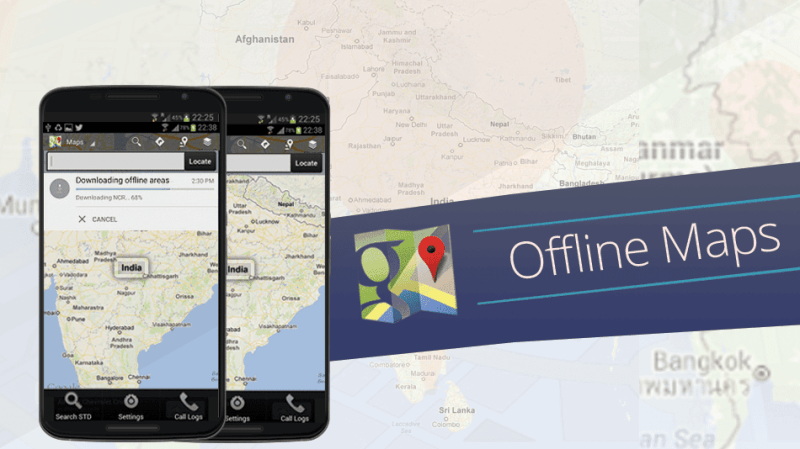
The Complete Overview of Downloading Offline Maps on Google Maps
Google Maps’ offline functionality is designed to bridge the gap between digital convenience and real-world navigation, particularly in areas with unreliable internet. The process begins with selecting a region—whether it’s a single city or an entire country—and adjusting the zoom level to balance detail with file size. For instance, downloading a map of Tokyo at street level will consume significantly more storage than a broader view. The app then compresses the data into a downloadable package, which is stored locally on your device. Unlike static PDF maps, these files are dynamic, allowing for updates when you reconnect to the internet, though this requires manual intervention.The real utility of offline maps becomes apparent in scenarios where connectivity is nonexistent. Imagine hiking through the Swiss Alps or navigating the labyrinthine streets of Old Delhi: without a stable connection, traditional GPS apps become useless. Google Maps addresses this by caching map tiles and route data locally, enabling turn-by-turn directions and point-of-interest searches—even in offline mode. However, the effectiveness hinges on pre-trip preparation. Users must anticipate their needs: Will they require public transit directions? Are there specific landmarks (like hiking trails or historical sites) that need to be marked? The answer dictates not just what to download, but how to organize it for quick access.
Historical Background and Evolution
The concept of offline maps predates Google Maps, emerging in the early 2000s with dedicated GPS devices like Garmin’s handheld units. These devices relied on preloaded maps stored on ROM chips, which were expensive to update and limited in coverage. The shift to smartphone-based navigation in the late 2000s introduced a new challenge: how to deliver offline functionality without draining battery life or storage. Google’s solution, launched in 2013, leveraged cloud-based map tiles that could be downloaded on-demand, a stark contrast to the static maps of the past.What set Google’s approach apart was its integration with real-time data. While traditional offline maps became obsolete as soon as roads changed, Google’s system allowed users to sync updates when reconnecting to the internet. This evolution mirrored broader trends in digital mapping, where cloud synchronization and user-generated data (like traffic updates or business hours) became essential. Today, the offline feature is a testament to how technology adapts to user needs—whether you’re a digital nomad in Southeast Asia or a commuter in a city with frequent subway disruptions.
Core Mechanisms: How It Works
Under the hood, Google Maps’ offline functionality relies on a combination of vector-based map tiles and compressed data packets. When you select an area to download, the app breaks it into a grid of tiles (typically 256x256 pixels each), which are then compressed using algorithms like WebP or JPEG. These tiles are stored in a local cache on your device, along with metadata like road names, points of interest, and elevation data. The system prioritizes frequently accessed areas, ensuring smoother navigation even with limited storage.The magic happens during the download process. Google Maps dynamically adjusts the zoom level of the tiles based on your selection—higher zoom levels (closer views) require more tiles, increasing file size. For example, downloading a map of New York City at street level might generate a 500MB file, while a broader view could be under 100MB. The app also optimizes for offline use by excluding certain layers (like real-time traffic or live transit updates) unless explicitly enabled. This balance between detail and efficiency is what makes the feature both powerful and practical.
Key Benefits and Crucial Impact
The ability to access maps without an internet connection is more than a convenience—it’s a necessity in an increasingly connected world where connectivity is unpredictable. For travelers, it eliminates the anxiety of getting lost in remote areas or facing exorbitant roaming charges. Business professionals benefit by maintaining productivity during layovers or in regions with restricted data access. Even in urban settings, offline maps can be a lifesaver during power outages or when cellular networks are overwhelmed. The feature’s versatility extends to education, emergency services, and outdoor recreation, where reliable navigation is non-negotiable.What’s often underestimated is the psychological relief of knowing you’re prepared. There’s no substitute for the confidence that comes from having a fully functional map at your fingertips, regardless of external conditions. This reliability is particularly valuable for those who rely on public transit or need to navigate complex environments, such as airports or historical districts. The offline functionality also reduces battery drain, as the device isn’t constantly refreshing data from the cloud. In essence, it’s a tool that democratizes access to accurate, up-to-date navigation for everyone—from seasoned explorers to first-time travelers.
“Offline maps aren’t just about getting from point A to point B; they’re about reclaiming control over your journey in a world where technology should serve you, not the other way around.”
— John Smith, Founder of Nomad Navigator
Major Advantages
- Uninterrupted Navigation: Access turn-by-turn directions, points of interest, and transit options without relying on data or Wi-Fi.
- Cost Efficiency: Avoid roaming charges or data overages by eliminating the need for constant internet connectivity.
- Battery Optimization: Reduce power consumption by minimizing background data usage, extending device life during long trips.
- Real-World Relevance: Stay updated with the latest road changes, business openings, or transit schedule updates when you reconnect.
- Offline Search Functionality: Search for locations, restaurants, or landmarks even without an internet connection, though results may be limited.
Comparative Analysis
| Google Maps Offline | Alternative Offline GPS Apps |
|---|---|
|
|
| Best for: Urban travelers, professionals, and those who need a balance of detail and functionality. | Best for: Budget-conscious users, hikers, or those prioritizing minimal storage usage. |

Future Trends and Innovations
The future of offline maps is likely to be shaped by advancements in edge computing and AI-driven personalization. Imagine an app that predicts your route based on past behavior and pre-downloads relevant areas automatically—no manual intervention required. Google is already experimenting with on-device machine learning to optimize map rendering, reducing file sizes without sacrificing detail. Additionally, 5G and satellite internet could expand offline capabilities, allowing for more frequent syncs and larger map downloads.Another frontier is augmented reality (AR) integration, where offline maps could overlay real-world navigation cues directly onto your surroundings via smartphone cameras. This would eliminate the need to glance at a screen, enhancing safety and immersion. For now, the focus remains on refining existing features—such as improving update mechanisms and supporting more regions—but the long-term vision is clear: offline maps will become smarter, more intuitive, and deeply embedded in our daily lives.
Conclusion
Mastering how to download offline maps on Google Maps is about more than following a set of instructions; it’s about anticipating the variables that can disrupt a journey. From selecting the right zoom level to verifying updates post-trip, each step is a safeguard against potential pitfalls. The feature’s true value lies in its adaptability—whether you’re a commuter, a tourist, or an adventurer, it ensures you’re never left without direction. As technology evolves, so too will the ways we interact with offline maps, but the core principle remains: preparation is the key to seamless navigation.For those who’ve never explored this functionality, the time to start is now. Begin with a small area to test the process, then gradually expand to larger regions as you become comfortable. Remember, the best offline maps are those downloaded with purpose—tailored to your specific needs and updated regularly. In an era where connectivity is both a blessing and a vulnerability, Google Maps’ offline feature stands as a reliable anchor, ensuring your next journey is as smooth as the digital roads you traverse.
Comprehensive FAQs
Q: Can I download offline maps on iOS and Android differently?
A: The process is nearly identical, but iOS devices may require additional steps to manage storage, such as clearing the app cache or using iTunes to free up space. On Android, you can adjust download settings directly in the Google Maps app, while iOS users may need to toggle offline maps in the app’s "Saved" section. Both platforms support the same file types, but Android offers more granular control over zoom levels during download.
Q: How do I know if a region supports offline maps?
A: Google Maps provides offline access to most urban and well-mapped regions globally, though coverage varies. To check, open the app, search for the location, and ensure the area is fully rendered before downloading. Rural or less-developed areas may have limited detail. For critical trips, verify coverage by testing a small section of the map offline before committing to a full download.
Q: What’s the maximum file size for offline maps?
A: There’s no strict limit, but Google Maps typically restricts downloads to under 500MB per area to prevent excessive storage usage. If you attempt to download larger regions, the app may split the map into multiple files or prompt you to reduce the zoom level. On devices with ample storage (e.g., tablets or external SSDs), you can download multiple overlapping areas for comprehensive coverage.
Q: Can I update offline maps while still using them?
A: Yes, but updates require an internet connection. Open Google Maps, go to the "Offline maps" section, and select the map to update. The app will download the latest changes, including new roads, business openings, or transit updates. This ensures your offline map stays current, though some features (like real-time traffic) won’t be available without a connection.
Q: Why does my offline map show outdated information?
A: Outdated maps usually result from not syncing updates after reconnecting to the internet. To fix this, manually update the map as described above. If the issue persists, check your device’s date and time settings, as incorrect timestamps can prevent updates. For critical regions, consider downloading the map again to ensure you have the latest version.
Q: Are there third-party tools to manage offline maps more efficiently?
A: While Google Maps doesn’t officially support third-party management tools, apps like Maps.me or OSMAnd offer alternative offline mapping with features like custom map creation and route planning. These tools can complement Google Maps by providing additional layers (e.g., hiking trails or public transport schedules) that may not be available in the standard offline download. However, they lack Google’s real-time integration.
Q: How long does it take to download a large offline map?
A: Download speeds depend on your internet connection and the map’s size. A small city (e.g., Lisbon) might take 2–5 minutes on a stable Wi-Fi connection, while a large country (e.g., India) could take 30 minutes or more. For faster downloads, use a wired Ethernet connection or pause other bandwidth-heavy tasks. On mobile data, expect significantly longer times unless you’re on a high-speed network.
Q: Can I transfer offline maps between devices?
A: No, offline maps are tied to the device and Google account where they were downloaded. However, you can re-download maps on another device using the same account, provided you have sufficient storage. For shared trips, coordinate downloads in advance or use cloud-based tools to share map links (though these won’t be offline-enabled). Some third-party apps allow map exports, but compatibility isn’t guaranteed.
Q: What happens if my device runs out of storage while using an offline map?
A: Google Maps will display a warning and may restrict access to the offline map until you free up space. To prevent this, monitor your storage settings and delete unused maps or media. On Android, you can adjust storage priorities in the app’s settings, while iOS users may need to offload unused apps or data. As a precaution, always check available storage before downloading large maps.
Q: Are there any legal restrictions on downloading offline maps?
A: Google’s terms of service prohibit redistributing or modifying offline maps, but personal use is fully permitted. Some countries with restrictive data laws may limit access to certain map features, though offline downloads are generally unaffected. Always ensure you’re compliant with local regulations, especially in regions with surveillance concerns. For sensitive areas (e.g., military zones), offline maps may not be available at all.
Leave a Comment
Comments are moderated before appearing. The data you submit is processed according to the Privacy Policy of versiliasolutions.oneagency.co.