How to Invert Colors on Android: A Definitive Walkthrough
Table of Contents
- The Complete Overview of How to Invert Colors on Android
- Historical Background and Evolution
- Core Mechanisms: How It Works
- Key Benefits and Crucial Impact
- Major Advantages
- Comparative Analysis
- Future Trends and Innovations
- Conclusion
- Comprehensive FAQs
- Q: Does color inversion work on all Android apps?
- Q: Can I invert colors without going into settings?
- Q: Will color inversion drain my battery faster?
- Q: Are there alternatives to Android’s built-in inversion?
- Q: Does color inversion help with colorblindness?
- Q: Can I invert colors on an Android TV or tablet?
- Q: What’s the difference between color inversion and negative color mode?
- Q: Will inverting colors affect my photos or videos?
- Q: Can I create a shortcut to toggle inversion quickly?
- Q: Does color inversion work on foldable phones?
Android’s color inversion feature is more than a gimmick—it’s a functional tool for users with visual impairments, developers testing UI designs, or anyone seeking a unique display experience. The ability to flip colors on an Android device isn’t just about aesthetic experimentation; it serves practical purposes, from reducing eye strain to adapting interfaces for better readability. While modern smartphones have streamlined the process, the underlying mechanics remain rooted in accessibility principles that date back to early computing innovations.
For those unfamiliar, how to invert colors on Android typically involves navigating through accessibility settings, though the exact path varies by manufacturer. Some devices offer one-tap toggles, while others require deeper configuration. The feature’s accessibility extends beyond personal use—it’s also a diagnostic tool for developers and designers, allowing them to simulate colorblindness or low-contrast conditions. Understanding these nuances ensures users maximize the feature’s potential, whether for productivity or inclusivity.
The evolution of color inversion on Android mirrors broader trends in tech accessibility. What began as a niche adjustment for visually impaired users has become a mainstream customization option, thanks to advancements in software and hardware. Today, manufacturers like Samsung, Google, and OnePlus integrate inversion tools into their default settings, often with additional tweaks like color filters or brightness adjustments. Yet, despite its ubiquity, many users remain unaware of its full capabilities—or the alternatives when built-in options fall short.
The Complete Overview of How to Invert Colors on Android
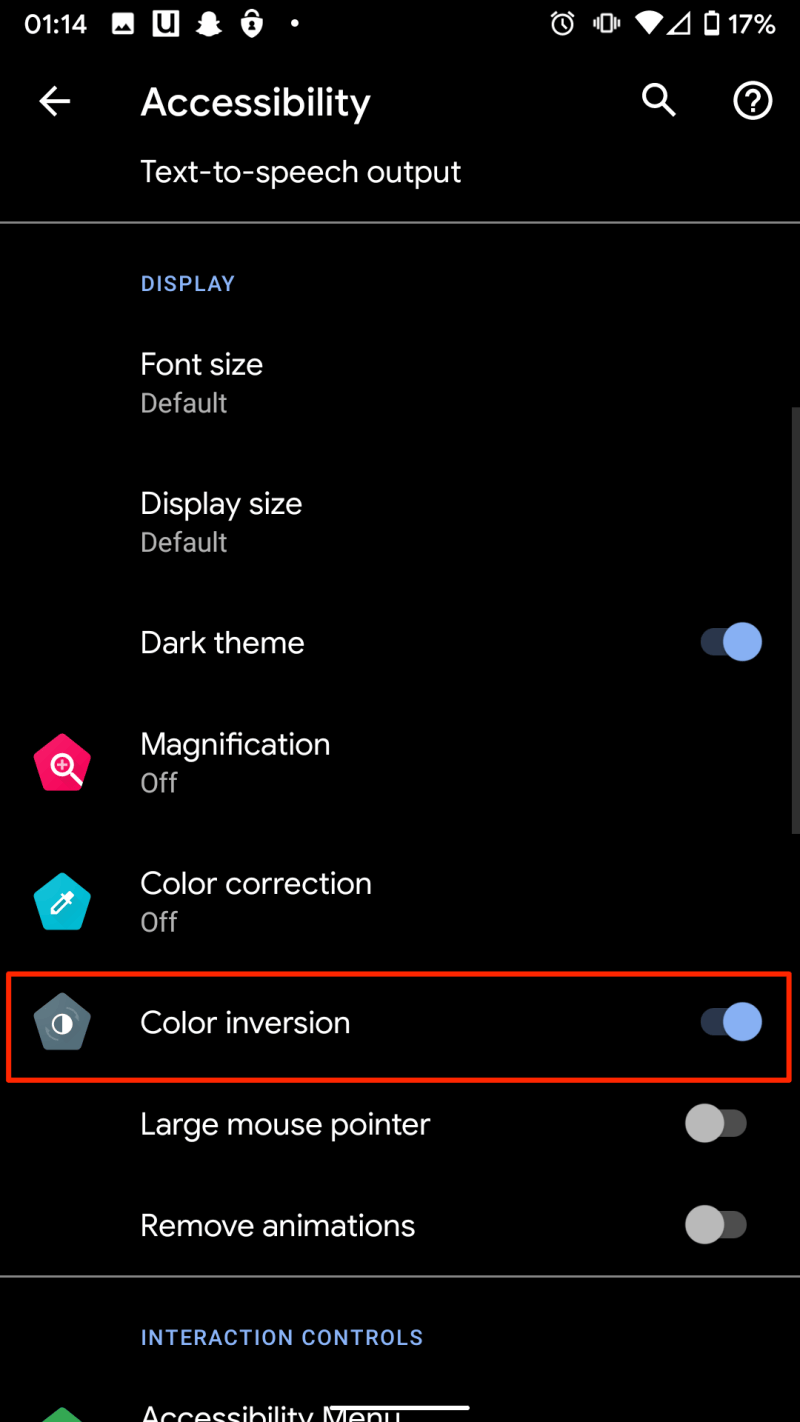
Android’s color inversion feature is designed to reverse the color spectrum of a device’s display, swapping dark and light hues. This isn’t merely an aesthetic flip; it’s a calibrated adjustment that can improve contrast for users with conditions like achromatopsia or severe light sensitivity. The method varies slightly depending on the device’s skin (e.g., Samsung’s One UI vs. Google’s vanilla Android), but the core principle remains consistent: access the Accessibility menu, locate Color Correction, and enable Color Inversion.The process is straightforward for most users, but nuances arise with custom ROMs or older Android versions. For instance, devices running Android 10 or later may require enabling Developer Options first, while newer models like the Pixel 7 or Galaxy S23 integrate the feature directly into the Accessibility shortcut menu. Third-party apps, such as Color Inversion for Android, can also provide additional controls, such as partial inversion or custom color profiles. These alternatives are useful when OEM implementations lack flexibility.
Historical Background and Evolution
Color inversion on Android traces its roots to early computer accessibility tools, where developers created filters to assist users with visual impairments. The concept gained traction in the 1990s with screen reader software, which often included grayscale or inverted displays to improve text readability. By the 2010s, smartphones adopted similar features, with Apple’s iOS introducing Invert Colors in iOS 6 (2012) as part of its Accessibility suite. Android followed suit, embedding the option in Accessibility Settings by Android 5.0 Lollipop.The evolution didn’t stop there. Manufacturers began customizing the feature to align with their design philosophies. Samsung’s Color Correction menu, for example, expanded beyond inversion to include Color Filter and Negative Color modes, catering to users with specific visual needs. Google’s Live Caption and Magnification tools later integrated with inversion, creating a more cohesive accessibility ecosystem. Today, the feature is so refined that it’s often overlooked—yet its underlying algorithms continue to improve, leveraging machine learning to adjust contrast dynamically.
Core Mechanisms: How It Works
At its core, color inversion on Android operates by modifying the RGB (Red, Green, Blue) values of each pixel on the screen. When enabled, the device’s display driver reverses these values: a pixel originally rendered as RGB(255, 0, 0) for red becomes RGB(0, 0, 255) for blue, and vice versa. This process is handled at the OS level, meaning it applies universally across apps unless an application explicitly overrides the setting (e.g., games or media players with custom rendering).The mechanics extend beyond simple inversion. Modern implementations use gamma correction to ensure the inverted colors remain perceptually balanced, preventing washed-out or overly harsh displays. Some devices also allow users to adjust the inversion intensity, offering a spectrum between full inversion and a subtle tint. This granularity is particularly useful for users who need partial adjustments, such as those with mild light sensitivity. Behind the scenes, Android’s Accessibility Suite coordinates with the device’s GPU to apply these changes in real time, with minimal performance impact.
Key Benefits and Crucial Impact
The practical applications of how to invert colors on Android extend far beyond novelty. For users with visual impairments, inversion can drastically improve readability by increasing contrast between text and backgrounds. Studies suggest that inverted displays reduce eye strain in low-light conditions, making them a preferred setting for late-night reading or outdoor use. Developers also rely on the feature to test UI designs under extreme contrast scenarios, ensuring accessibility compliance before launch.Beyond functionality, color inversion fosters inclusivity in digital spaces. By enabling users to customize their displays, Android reinforces its commitment to universal design—a principle that prioritizes usability for all, regardless of ability. The feature’s integration into mainstream settings reflects a broader industry shift toward proactive accessibility, where technology adapts to users rather than the other way around.
"Accessibility isn’t just about compliance; it’s about creating environments where everyone can thrive. Color inversion is a small but powerful example of how technology can bridge gaps in perception." — Android Accessibility Team, Google
Major Advantages
- Enhanced Readability: Inverts dark text on light backgrounds to light text on dark backgrounds, improving contrast for users with low vision or dyslexia.
- Reduced Eye Strain: Ideal for prolonged screen use, as inverted displays often emit less blue light, which is linked to digital eye fatigue.
- Developer Testing: Simulates colorblindness or high-contrast scenarios, helping designers identify UI accessibility flaws early.
- Customization Flexibility: Some implementations allow partial inversion or color filtering, catering to specific visual needs.
- Battery Efficiency: Inverting colors can sometimes reduce power consumption by optimizing backlight usage, though this varies by device.
Comparative Analysis
While Android’s color inversion is robust, the experience varies across manufacturers. Below is a comparison of key implementations:| Feature | Google (Pixel) | Samsung (One UI) | Xiaomi/Redmi | Third-Party Apps |
|---|---|---|---|---|
| Location in Settings | Accessibility → Color Correction → Color Inversion | Accessibility → Color Correction → Color Inversion | Accessibility → Vision Enhancement → Color Inversion | App-specific (e.g., "Color Inversion for Android") |
| Additional Controls | Intensity slider, auto-rotate | Color Filter, Negative Color mode | Basic inversion only | Custom profiles, partial inversion |
| Performance Impact | Minimal (hardware-accelerated) | Moderate (software-based) | Varies by device | Depends on app optimization |
| Accessibility Integration | Deep (works with Live Caption) | Moderate (limited to Samsung apps) | Basic (standalone feature) | Extensive (supports advanced filters) |

Future Trends and Innovations
The future of how to invert colors on Android lies in adaptive and AI-driven customization. Emerging technologies, such as dynamic contrast adjustment, could allow displays to invert colors automatically based on ambient lighting or user activity. Machine learning models may also personalize inversion profiles, learning from user preferences to optimize readability over time. Additionally, advancements in OLED and microLED displays could enable true black inversion, further reducing eye strain.Another frontier is cross-platform synchronization, where color inversion settings sync across devices via cloud services like Google’s Accessibility Suite. This would let users maintain consistent display preferences whether they’re on a phone, tablet, or PC. As augmented reality (AR) and wearable tech grow, color inversion may also extend to AR glasses, providing real-time visual adjustments for users in diverse environments.
Conclusion
Mastering how to invert colors on Android unlocks a world of possibilities, from practical accessibility to creative experimentation. While the feature is often overshadowed by flashier customizations, its impact on daily usability is undeniable. Whether you’re a developer, a user with visual needs, or simply someone who enjoys tinkering with display settings, understanding the mechanics and alternatives ensures you’re not limited by default implementations.As Android continues to evolve, so too will the tools at users’ disposal. The key takeaway? Don’t assume the built-in inversion option is your only choice. Explore third-party apps, test manufacturer-specific tweaks, and stay informed about upcoming innovations. The goal isn’t just to invert colors—it’s to tailor your device to your unique needs, one pixel at a time.
Comprehensive FAQs
Q: Does color inversion work on all Android apps?
Most native and third-party apps respect the system-wide color inversion setting, but some—particularly games, media players, or apps with custom rendering engines—may override it. If an app ignores inversion, check for an internal accessibility menu or contact the developer for support.
Q: Can I invert colors without going into settings?
Yes, on many devices, you can enable inversion via the Accessibility Shortcut (usually a triple-tap of the power button or a custom gesture). This provides a quick toggle without navigating menus. Some launchers, like Nova or Action Launcher, also offer direct inversion buttons.
Q: Will color inversion drain my battery faster?
Inversion itself has minimal impact on battery life, but if your device uses an OLED screen, inverted white text on a black background may consume slightly more power than the default. The difference is usually negligible unless you’re using the feature for extended periods.
Q: Are there alternatives to Android’s built-in inversion?
Absolutely. Apps like Color Inversion for Android or Eye Comfort offer advanced controls, such as partial inversion, color filtering, or scheduled activation. Some even sync with wearables or other devices. For deeper customization, tools like ADB commands can force inversion system-wide.
Q: Does color inversion help with colorblindness?
While inversion can improve contrast for some users with color vision deficiencies, it’s not a universal solution. For colorblindness, specialized apps like Color Blindness Simulator or EnChroma filters are more effective. Inversion may still help by increasing text-background contrast, but it won’t correct color perception issues.
Q: Can I invert colors on an Android TV or tablet?
Yes, the process is identical to phones. On Android TVs (e.g., Nvidia Shield, Fire TV with custom ROMs), navigate to Settings → Accessibility → Color Correction. Tablets follow the same path as smartphones, though some manufacturers may hide the option under Display Settings instead.
Q: What’s the difference between color inversion and negative color mode?
Color inversion reverses the entire color spectrum (black becomes white, red becomes cyan, etc.), while Negative Color mode (found on Samsung devices) applies a more aggressive filter, often with higher contrast. Negative mode is useful for extreme readability needs but can be harsh on the eyes for prolonged use.
Q: Will inverting colors affect my photos or videos?
No, inversion only alters the display output. Photos and videos will appear normally unless you’re using an app that applies real-time filters (e.g., Instagram with a "negative" effect). The system inversion does not modify stored media files.
Q: Can I create a shortcut to toggle inversion quickly?
Yes, using Automation apps like Tasker or Shortcuts (on newer Android versions), you can create a widget or button that toggles inversion via ADB commands or Accessibility Service calls. Some launchers also support adding inversion to their quick settings panel.
Q: Does color inversion work on foldable phones?
Yes, but the experience may vary slightly due to the dynamic display resizing. On devices like the Galaxy Z Fold or Pixel Fold, inversion applies uniformly across all screens, including the cover display. Performance remains consistent with non-foldable models.
Leave a Comment
Comments are moderated before appearing. The data you submit is processed according to the Privacy Policy of versiliasolutions.oneagency.co.