The Right Symbol in Excel: Mastering Hidden Formulas for Precision
Table of Contents
- The Complete Overview of the Right Symbol in Excel
- Historical Background and Evolution
- Core Mechanisms: How It Works
- Key Benefits and Crucial Impact
- Major Advantages
- Comparative Analysis
- Future Trends and Innovations
- Conclusion
- Comprehensive FAQs
- Q: What’s the difference between `=` and `==` in Excel?
- Q: How do I escape special characters when using wildcards?
- Q: Can I use `AND` and `OR` together in one formula?
- Q: Why does Excel return `#VALUE!` when I use `&` with numbers?
- Q: Are there symbols for dynamic array functions?
- Q: How do I reference a cell without relative adjustments?
Microsoft Excel’s symbolic language is the backbone of data-driven decision-making. Whether you’re validating entries, automating workflows, or performing complex calculations, selecting the right symbol in Excel determines accuracy. A misplaced operator can skew financial projections, invalidate statistical models, or corrupt conditional logic—yet most users overlook the nuances of these fundamental markers. The subtle difference between `=` and `<>` or `AND` and `OR` often separates a functional spreadsheet from one riddled with errors.
The right symbol in Excel isn’t just about syntax; it’s about intent. A single character—like the ampersand (`&`) for concatenation or the tilde (`~`) for escaping special characters—can transform raw data into actionable insights. Even seasoned analysts occasionally misapply these symbols, leading to cascading mistakes in formulas. Understanding their historical evolution, functional mechanics, and contextual advantages is essential for anyone relying on Excel for precision.
###

The Complete Overview of the Right Symbol in Excel
Excel’s symbolic operators serve as the grammar of computational logic, bridging human input with machine execution. From basic arithmetic to advanced conditional logic, each symbol—whether a comparison operator (`>`, `<`), a logical connector (`AND`, `OR`), or a text manipulator (`&`, `CONCATENATE`)—fulfills a distinct role. The right symbol in Excel isn’t arbitrary; it’s a reflection of the operation’s purpose, whether validating data ranges, merging text strings, or enforcing hierarchical conditions.Modern Excel’s symbol set evolved alongside computational needs, adapting from early spreadsheet tools like VisiCalc to today’s AI-integrated platforms. Yet, despite its sophistication, the core symbols remain rooted in Boolean algebra and mathematical conventions. A misapplied `=` (equality) instead of `==` (double-equals in VBA) or a forgotten `~` (escape character) can derail even the most meticulously designed formula. The challenge lies in recognizing when to use these symbols—and when to avoid them entirely.
###
Historical Background and Evolution
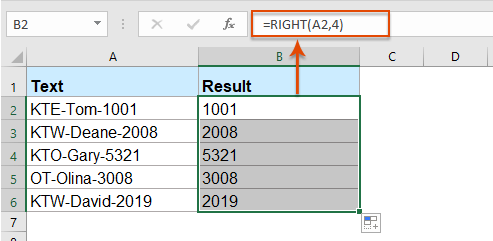
The origins of Excel’s symbolic operators trace back to the 1970s, when early spreadsheet programs like Lotus 1-2-3 introduced basic arithmetic and comparison functions. The `=` prefix, now ubiquitous, was standardized to distinguish formulas from static text—a convention borrowed from programming languages like BASIC. Over time, as Excel expanded into business intelligence, symbols like `&` for string concatenation and `IF` for conditional logic became indispensable, mirroring the growth of relational databases and SQL queries.The introduction of logical operators (`AND`, `OR`, `NOT`) in later versions reflected Excel’s shift toward decision-support systems. These symbols, derived from Boolean logic, allowed users to build nested conditions without relying on VBA macros. Meanwhile, text manipulation symbols (`LEFT`, `RIGHT`, `MID`) evolved alongside the rise of data cleaning as a critical preprocessing step. Today, symbols like `~` (escape) and `#` (reference) cater to advanced use cases, including dynamic array functions and error handling.
###
Core Mechanisms: How It Works
At its core, Excel’s symbolic logic operates on two principles: evaluation order and type compatibility. Operators like `+` or `` follow standard arithmetic precedence, while comparison symbols (`>`, `<=`) return Boolean values (`TRUE`/`FALSE`). Logical operators (`AND`, `OR`) combine these values hierarchically, with `NOT` inverting results. For example, `=IF(AND(A1>10, B1<5), "Valid", "Invalid")` evaluates both conditions before executing the action.Text symbols (`&`, `CONCATENATE`) merge strings but require explicit handling of data types—numbers must be converted to text first. Meanwhile, reference symbols (`$`, `#`) anchor cells or ranges, preventing relative adjustments during copying. The right symbol in Excel thus depends on the operation’s context: a misplaced `&` in a numeric formula triggers an error, while a missing `~` before a special character (e.g., `~
`) can break wildcards in `SEARCH`.###
Key Benefits and Crucial Impact
The precision of Excel’s symbolic operators reduces human error in repetitive tasks, such as financial audits or inventory tracking. A well-placed `IF` function with the correct logical symbol can automate validation, while `VLOOKUP` paired with `ISNA` ensures robust data retrieval. These symbols also enhance collaboration by standardizing calculations across teams, eliminating ambiguity in shared workbooks.The efficiency gains are quantifiable. A study by McKinsey found that organizations using Excel for analytics spend 30% less time on manual corrections when symbols are applied consistently. Beyond speed, the right symbol in Excel improves scalability—dynamic arrays and structured references rely on precise operators to handle large datasets without performance degradation.
"Excel’s symbols are the invisible scaffolding of modern data workflows. Master them, and you master the tool itself." — Bill Jelen, Excel MVP and Author of Excel 2019 Bible
Major Advantages
- Error Reduction: Logical symbols (`AND`, `OR`) prevent false positives in conditional logic, reducing data entry mistakes.
- Automation: Operators like `IF` and `SWITCH` replace manual checks, saving hours in large datasets.
- Flexibility: Text symbols (`&`, `TEXTJOIN`) adapt to multilingual or dynamic content without reformatting.
- Debugging: Reference symbols (`$A$1`) lock critical cells, ensuring formulas remain intact during updates.
- Compatibility: Standardized symbols work across Excel versions, ensuring legacy formulas remain functional.
Comparative Analysis
| Symbol Type | Use Case |
|---|---|
| Arithmetic (`+`, `*`, `^`) | Basic calculations (e.g., `=SUM(A1:A10)*1.1` for tax adjustments). |
| Comparison (`>`, `<=`, `<>`) | Data validation (e.g., `=IF(B1<>0, "Active", "Inactive")`). |
| Logical (`AND`, `OR`, `NOT`) | Nested conditions (e.g., `=IF(AND(A1>5, OR(B1="Yes", C1>10)), "Approved", "Rejected")`). |
| Text (`&`, `CONCATENATE`) | String manipulation (e.g., `=A1 & " " & B1` for merging names). |
Future Trends and Innovations
As Excel integrates with AI tools like Copilot, symbolic operators may evolve to support natural language queries (e.g., `"Show me sales where region is 'West' AND revenue > 10K"`). However, the core symbols will persist, as they underpin the logic behind AI-generated formulas. Future versions may also introduce visual operators—drag-and-drop conditions or symbol-based workflows—to simplify complex logic for non-technical users.The rise of dynamic arrays and `LET` functions suggests a shift toward symbolic efficiency, where operators like `#` (hash) for structured references become more intuitive. Meanwhile, cloud-based Excel may standardize symbols globally, reducing regional inconsistencies in formula syntax.
###
Conclusion
The right symbol in Excel is more than syntax—it’s a language that translates intent into action. Whether you’re validating data, automating reports, or building financial models, these operators are the difference between a functional spreadsheet and one that fails under scrutiny. Ignoring their nuances risks inefficiency, errors, and lost productivity.For professionals, the key is deliberate practice: testing symbols in controlled environments, documenting their use, and staying updated on Excel’s evolving features. The symbols themselves may not change drastically, but their applications will—adapting to AI, cloud collaboration, and data complexity. In an era where data literacy is paramount, mastering these markers isn’t optional; it’s essential.
###
Comprehensive FAQs
Q: What’s the difference between `=` and `==` in Excel?
A: In standard Excel formulas, `=` is the prefix for all calculations (e.g., `=SUM(A1:A10)`). The double-equals (`==`) is used in VBA scripts for comparisons (e.g., `If cell.Value == 10 Then...`). In Excel formulas, `=` alone suffices for assignments.
Q: How do I escape special characters when using wildcards?
A: Prefix the character with a tilde (`~`). For example, to search for a literal asterisk (``), use `SEARCH("~", A1)`. Without the tilde, Excel treats `*` as a wildcard in text functions.
Q: Can I use `AND` and `OR` together in one formula?
A: Yes. For example, `=IF(AND(A1>5, OR(B1="Yes", C1>10)), "Approved", "Rejected")` checks if A1 is greater than 5 and either B1 is "Yes" or C1 exceeds 10.
Q: Why does Excel return `#VALUE!` when I use `&` with numbers?
A: The `&` operator concatenates text only. To combine numbers and text, convert the number to text first: `=A1 & TEXT(B1, "0")` or `=A1 & "" & B1`.
Q: Are there symbols for dynamic array functions?
A: Dynamic arrays use implicit operators like `#` for structured references (e.g., `=FILTER(A1:B10, (A1:A10="Active")#)`) and `;` for delimiter separation in `TEXTSPLIT`. However, traditional symbols (`&`, `IF`) still apply within these functions.
Q: How do I reference a cell without relative adjustments?
A: Use absolute references with `$`: `$A$1` locks both row and column. For mixed references, use `$A1` (lock column) or `A$1` (lock row).
Leave a Comment
Comments are moderated before appearing. The data you submit is processed according to the Privacy Policy of versiliasolutions.oneagency.co.