How to Run a PS1 Script: The Definitive Technical Walkthrough
Table of Contents
- The Complete Overview of Running a PS1 Script
- Historical Background and Evolution
- Core Mechanisms: How It Works
- Key Benefits and Crucial Impact
- Major Advantages
- Comparative Analysis
- Future Trends and Innovations
- Conclusion
- Comprehensive FAQs
- Q: Why does PowerShell block my script with "Running scripts is disabled"?
- Q: Can I run a PS1 script without changing the execution policy?
- Q: How do I debug a PS1 script that fails silently?
- Q: What’s the difference between `.\script.ps1` and `powershell.exe -File script.ps1`?
- Q: Can I run a PS1 script on Linux or macOS?
- Q: How do I ensure my PS1 script runs with elevated privileges?
PowerShell’s `.ps1` scripts are the backbone of modern Windows automation, yet many professionals still struggle with the basics of execution. Unlike basic commands, running a PS1 script requires explicit permission policies, proper syntax, and an understanding of execution contexts—all of which can trip up even experienced admins. The process isn’t just about typing `.\script.ps1`; it’s about navigating PowerShell’s security model, handling dependencies, and ensuring the script runs in the intended scope.
The confusion often stems from PowerShell’s default security stance: scripts are blocked by default unless explicitly allowed. This design, while secure, forces users to engage with execution policies—a critical but frequently overlooked step. Without the right policy in place, even a well-written script will fail with cryptic errors like "File cannot be loaded because running scripts is disabled." The solution isn’t just a one-line fix; it’s a balance between security and functionality that demands precision.
For DevOps engineers, system administrators, and automation enthusiasts, mastering how to run a PS1 script is non-negotiable. Whether you’re deploying infrastructure-as-code, automating repetitive tasks, or integrating scripts into CI/CD pipelines, the execution method directly impacts performance, reliability, and maintainability. Below, we break down the technical nuances, historical context, and future-proofing strategies for PS1 script execution.
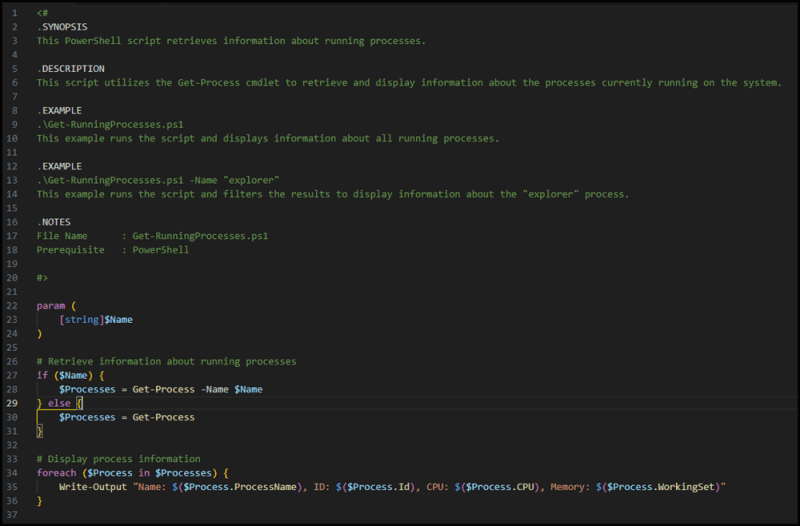
The Complete Overview of Running a PS1 Script
Running a PS1 script in PowerShell is more than invoking a file—it’s a multi-step process that involves security policies, script scope, and environment variables. At its core, the operation hinges on PowerShell’s execution policy, which determines whether scripts can run at all. The default policy (`Restricted`) blocks all script execution, making it impossible to run even the simplest `.ps1` file without adjustment. This security measure, while robust, often clashes with practical needs, forcing administrators to either modify policies or use alternative execution methods like `powershell.exe -ExecutionPolicy Bypass`.Beyond policies, the method of execution matters. Directly calling a script with `.\script.ps1` works only in the current session and lacks persistence. For enterprise environments, scripts are often invoked via scheduled tasks, PowerShell profiles, or even remote sessions using `Invoke-Command`. Each approach carries its own set of considerations: session isolation, credential handling, and output redirection. The choice of method depends on the script’s purpose—whether it’s a one-off task or part of a larger workflow.
Historical Background and Evolution
PowerShell’s scripting capabilities evolved from a need for a more powerful alternative to batch files and VBScript. Microsoft introduced PowerShell 1.0 in 2006 as a command-line shell and scripting language built on the .NET Framework, designed to streamline system administration. The inclusion of `.ps1` as the native script extension reflected its integration with Windows automation, but early versions lacked robust security controls, leading to widespread script execution risks.The introduction of execution policies in PowerShell 2.0 marked a turning point. Policies like `AllSigned` (requiring scripts to be digitally signed) and `RemoteSigned` (allowing local scripts but blocking downloaded ones) addressed security concerns while maintaining usability. Over time, PowerShell’s scripting engine matured, introducing features like `using namespace` for modularity and `PSSession` for remote execution. Today, running a PS1 script is not just about invoking code but leveraging a mature ecosystem of security, debugging, and integration tools.
Core Mechanisms: How It Works
When you run a PS1 script, PowerShell follows a structured execution pipeline. First, it checks the execution policy to determine if script execution is permitted. If the policy is `Bypass` or `Unrestricted`, the script proceeds; otherwise, it halts with an error. Next, PowerShell loads the script’s content into memory, resolving variables, functions, and dependencies. The script then executes line by line within the current scope, unless explicitly invoked in a child scope (e.g., via `Start-Process`).Under the hood, PowerShell uses the `System.Management.Automation` namespace to parse and compile scripts. This means that complex scripts—those with loops, conditionals, or external module dependencies—require additional validation. For example, a script calling `Import-Module ActiveDirectory` will fail unless the `ActiveDirectory` module is installed. The execution context also plays a role: scripts run in the current session inherit environment variables, but remote sessions or scheduled tasks may require explicit variable passing.
Key Benefits and Crucial Impact
The ability to run a PS1 script efficiently transforms how organizations manage infrastructure, deploy software, and automate workflows. Scripts reduce manual errors, enforce consistency, and cut operational costs by replacing repetitive tasks with automated processes. In DevOps, PS1 scripts are the glue that binds CI/CD pipelines, infrastructure-as-code deployments, and configuration management tools like Ansible or Terraform. Without them, many modern workflows would grind to a halt.For individual users, the impact is equally significant. System administrators leverage PS1 scripts to manage user accounts, monitor performance, and troubleshoot issues at scale. Developers use them to automate build processes, test environments, and deploy applications. The versatility of PowerShell scripting—combined with its deep integration into Windows—makes it indispensable for professionals who demand precision and control over their systems.
"PowerShell scripts aren’t just automation—they’re the difference between a reactive IT environment and a proactive one. Mastering how to run a PS1 script is mastering the future of system management."
—Microsoft PowerShell Team (2023)
Major Advantages
- Security Flexibility: Execution policies allow granular control over script execution, from fully restricted to signed-only, ensuring compliance with organizational security standards.
- Integration with .NET: PS1 scripts can leverage any .NET library, enabling complex tasks like file manipulation, API calls, or database interactions without third-party tools.
- Cross-Platform Compatibility: While native to Windows, PowerShell Core (6.0+) extends script execution to Linux and macOS, broadening use cases for hybrid environments.
- Debugging and Profiling: Tools like `$PSDebugContext` and `Set-PSBreakpoint` provide deep insights into script behavior, making troubleshooting more efficient.
- Non-Interactive Execution: Scripts can run headless via `Start-Process` or scheduled tasks, ideal for background processes or unattended installations.
Comparative Analysis
| Method | Use Case |
|---|---|
.\script.ps1 (Direct Execution) |
Quick testing in the current session; requires proper execution policy. |
powershell.exe -File script.ps1 (External Invocation) |
Bypasses current session’s execution policy; useful for one-off tasks. |
Invoke-Command -ScriptBlock { & .\script.ps1 } (Remote Execution) |
Runs scripts in a new session, isolating variables and errors. |
| Scheduled Task (Trigger-Based) | Automates scripts on a schedule, ideal for maintenance or backups. |

Future Trends and Innovations
The future of running PS1 scripts lies in tighter integration with cloud platforms and AI-driven automation. Microsoft’s push for PowerShell in Azure Arc and hybrid cloud scenarios means scripts will increasingly manage multi-cloud resources seamlessly. Additionally, AI-assisted scripting—where tools like GitHub Copilot suggest or generate PS1 code—will lower the barrier for non-experts while improving script quality.Another trend is the rise of "scriptless" automation, where no-code tools abstract PS1 logic into visual workflows. However, this doesn’t diminish the need for raw script execution; it complements it. As organizations adopt zero-trust security models, execution policies will evolve to support just-in-time (JIT) script permissions, further blending security and functionality.
Conclusion
Running a PS1 script is a foundational skill for anyone working with PowerShell, but it’s rarely as simple as it seems. The interplay between execution policies, session contexts, and dependencies creates a landscape where small mistakes lead to significant failures. By understanding the mechanics—from historical evolution to modern best practices—professionals can execute scripts reliably, securely, and efficiently.The key takeaway is balance: security without usability is ineffective, and usability without security is risky. Whether you’re a seasoned admin or a newcomer, mastering how to run a PS1 script is the first step toward harnessing PowerShell’s full potential.
Comprehensive FAQs
Q: Why does PowerShell block my script with "Running scripts is disabled"?
A: This error occurs because the current execution policy (checked via `Get-ExecutionPolicy`) is set to `Restricted` or `AllSigned`. To resolve it, either change the policy temporarily with `Set-ExecutionPolicy Bypass -Scope Process` (for the current session) or permanently adjust it to `RemoteSigned` or `Unrestricted` (though the latter is less secure). Always weigh security implications before modifying policies.
Q: Can I run a PS1 script without changing the execution policy?
A: Yes, use `powershell.exe -ExecutionPolicy Bypass -File "script.ps1"` to bypass the policy for a single invocation. This method is safer than permanently altering policies and works even in restricted environments.
Q: How do I debug a PS1 script that fails silently?
A: Enable debugging with `$DebugPreference = "Continue"` or use `Set-PSBreakpoint -Script script.ps1 -Mode Statement`. For silent failures, check `$Error` or redirect output with `script.ps1 2>&1 *out.txt` to capture errors. Tools like `Write-Verbose` and `-Verbose` flags also provide detailed execution logs.
Q: What’s the difference between `.\script.ps1` and `powershell.exe -File script.ps1`?
A: The former runs the script in the current PowerShell session, inheriting its variables and execution policy. The latter launches a new PowerShell process, bypassing the current session’s policy and avoiding scope conflicts. Use `-File` for isolated execution or when the current session’s policy is too restrictive.
Q: Can I run a PS1 script on Linux or macOS?
A: Yes, using PowerShell Core (6.0+). Install it via package managers (e.g., `sudo apt install powershell` on Ubuntu) and run scripts identically to Windows, though some Windows-specific cmdlets may not be available. Cross-platform compatibility is improving with each release.
Q: How do I ensure my PS1 script runs with elevated privileges?
A: Use `Start-Process powershell -Verb RunAs -ArgumentList '-File script.ps1'` to prompt for admin rights. For unattended elevation, configure the script to check `[Security.Principal.WindowsPrincipal][Security.Principal.WindowsIdentity]::GetCurrent().IsInRole([Security.Principal.WindowsBuiltInRole]::Administrator)` and exit gracefully if not.
Leave a Comment
Comments are moderated before appearing. The data you submit is processed according to the Privacy Policy of versiliasolutions.oneagency.co.