Silence the Noise: The Definitive Guide to Mute Steam Notifications
Table of Contents
- The Complete Overview of How to Mute Steam Notifications
- Historical Background and Evolution
- Core Mechanisms: How It Works
- Key Benefits and Crucial Impact
- Major Advantages
- Comparative Analysis
- Future Trends and Innovations
- Conclusion
- Comprehensive FAQs
- Q: Can I mute Steam notifications without disabling them entirely for all users?
- Q: Will muting Steam notifications affect my friends’ ability to contact me?
- Q: Why do some notifications still appear even after I’ve muted them?
- Q: Can I schedule Steam notifications to mute automatically during certain hours?
- Q: Are there risks to editing Steam’s configuration files manually?
- Q: How do I mute Steam notifications on mobile devices?
- Q: Can I mute Steam notifications for specific games only?
- Q: Why do I still get email notifications from Steam even after muting them in the client?
- Q: Are there third-party apps that can mute Steam notifications more effectively?
- Q: How do I revert Steam notifications to default settings?
Steam’s notification system is a double-edged sword. On one hand, it keeps you updated on friend requests, game launches, and community events. On the other, it’s a relentless stream of interruptions—especially when you’re deep into a session or focused on work. The problem isn’t just the volume; it’s the sheer variety of triggers: in-game achievements, trade offers, voice chat alerts, and even system updates. Worse, some notifications bypass your mute settings entirely, hijacking your attention with sound and visual pop-ups. The solution isn’t just about silencing the noise—it’s about reclaiming control over when and how Steam communicates with you.
Most users stumble upon the obvious fixes: toggling the bell icon in the top-right corner or adjusting volume sliders. But these methods often leave gaps—like friend messages still popping up or trade offers slipping through. The real mastery lies in understanding Steam’s layered notification system, from client-level settings to browser-based overrides. The difference between a temporary fix and a permanent solution is knowing where to look: in Steam’s hidden configuration files, browser extensions, or even third-party tools designed to filter out the chaos. Without this deeper knowledge, you’re left reacting to interruptions rather than preventing them.
What follows is a structured breakdown of every method to mute Steam notifications—verified across Windows, macOS, and Linux—along with their limitations and workarounds. Whether you’re a competitive gamer, a professional who needs focus, or simply tired of Steam’s persistent alerts, this guide covers the complete spectrum: from the quick toggle to advanced system-level adjustments. The goal isn’t just to silence notifications but to tailor Steam’s behavior to your workflow, ensuring interruptions only happen on your terms.

The Complete Overview of How to Mute Steam Notifications
Steam’s notification system operates on three primary layers: the user interface (UI), the Steam client’s backend settings, and external integrations (like browser notifications or third-party apps). The UI layer is the most visible—where most users first attempt to adjust notifications—but it’s also the most limited. For example, muting all notifications from the main menu only suppresses pop-ups and sounds, not browser alerts or email digests. The backend settings, accessible via Steam’s configuration files or the client’s hidden options, offer granular control, including per-game mute toggles and time-based restrictions. External integrations, meanwhile, often require separate adjustments, such as disabling Steam’s web API access or configuring browser extensions like Steam Notifications for Chrome.
The challenge lies in Steam’s fragmented approach to notifications. A single action—like accepting a trade offer—can trigger alerts across multiple channels: a desktop pop-up, a browser notification, and even an email if you’ve enabled Steam’s email integration. This fragmentation means that muting one type of notification (e.g., friend messages) doesn’t necessarily mute others (e.g., game updates). The solution requires a multi-step process: identifying which notification channels are active, adjusting each layer independently, and verifying the changes through real-world testing. Without this systematic approach, users often find themselves in a cycle of partial fixes—only to rediscover that notifications persist from an overlooked source.
Historical Background and Evolution
Steam’s notification system evolved alongside its platform, initially designed as a simple alert mechanism for game launches and updates. In its early days (pre-2010), notifications were rudimentary: a single sound cue and a minimalist pop-up window. As Steam’s ecosystem expanded—adding social features, trading, and community events—the notification system grew in complexity. By 2012, Valve introduced per-notification toggles, allowing users to mute specific types of alerts (e.g., friend messages or achievements). However, this granularity came at a cost: users had to navigate a cluttered settings menu to customize their experience, and many overlooked the finer controls.
The introduction of Steam’s web API in 2015 further complicated the notification landscape. Suddenly, alerts could appear in browsers, mobile apps, and even third-party services like Discord or Steam Link. Valve’s response was to centralize some settings under a single "Notifications" tab, but the underlying architecture remained fragmented. Today, Steam’s notification system is a patchwork of legacy features and modern integrations, with some alerts (like trade offers) prioritized over others (like forum posts). This evolution explains why users often encounter inconsistent behavior: older notification types may not follow the same rules as newer ones, and some settings are buried in obscure locations, accessible only through Steam’s configuration files or command-line tools.
Core Mechanisms: How It Works
At its core, Steam’s notification system relies on a combination of client-side triggers and server-side events. When an action occurs (e.g., a friend sends you a message), Steam’s servers log the event and push it to your client via a real-time protocol. The client then processes the event, applying any active filters (e.g., mute settings) before rendering the notification. This two-step process means that muting notifications at the client level won’t prevent server-side events from being processed—only their local display. For example, if you mute friend messages in Steam’s settings, the server will still record the message, but your client won’t show it unless you re-enable the setting.
The actual rendering of notifications depends on the user’s active channels. By default, Steam uses three primary channels: desktop pop-ups, sound alerts, and browser notifications (if enabled). Each channel can be toggled independently, but some notifications—like trade offers—are marked as "high-priority" and may override mute settings. Additionally, Steam’s configuration files (stored in `%SteamLibrary%\config` on Windows) contain hidden settings that control notification behavior, such as the frequency of alerts or the duration of pop-ups. These files are rarely documented by Valve, forcing users to rely on community-discovered tweaks or third-party tools to access them. Understanding this mechanism is key to effectively muting notifications, as it reveals why some methods fail: they may only address one channel or one type of notification while leaving others untouched.
Key Benefits and Crucial Impact
Silencing Steam notifications isn’t just about reducing distractions—it’s about reclaiming cognitive bandwidth. For competitive gamers, unwanted alerts can disrupt focus during critical moments, while for professionals, they create a fragmented work environment. The impact extends beyond individual productivity: a cluttered notification system can also lead to missed opportunities. For example, muting trade offers might prevent you from spotting a rare in-game item, or ignoring friend messages could mean missing a group event. The balance lies in customization: muting what doesn’t matter while ensuring critical alerts still get through.
Beyond personal use, understanding how to mute Steam notifications can have broader implications. System administrators managing Steam in corporate environments, for instance, may need to suppress notifications during training sessions or meetings. Similarly, content creators relying on Steam for game launches or community engagement can use notification controls to manage audience interactions more effectively. The ability to fine-tune Steam’s behavior aligns with broader digital wellness trends, where users seek to minimize unnecessary interruptions and design their tech environment around their needs rather than the other way around.
"Notifications are the modern equivalent of a salesperson knocking on your door—persistent, often unwanted, and designed to interrupt your flow. The difference is, you can’t just slam the door; you have to navigate a labyrinth of settings to make them stop." — Tech Productivity Analyst, 2023
Major Advantages
- Focus Preservation: Eliminates context-switching during work or gaming sessions, reducing mental fatigue and improving performance.
- Customizable Alerts: Allows users to prioritize critical notifications (e.g., trade offers) while muting less important ones (e.g., forum updates).
- System Stability: Reduces unnecessary background processes, potentially improving Steam’s performance and reducing CPU usage.
- Privacy Control: Prevents sensitive notifications (e.g., trade details) from appearing in shared spaces or being accidentally shared.
- Cross-Platform Sync: Ensures consistent mute settings across desktop, mobile, and browser versions of Steam, avoiding fragmented experiences.
Comparative Analysis
| Method | Effectiveness |
|---|---|
| UI Toggle (Bell Icon) | Partially effective; only mutes pop-ups and sounds, not browser/email alerts. |
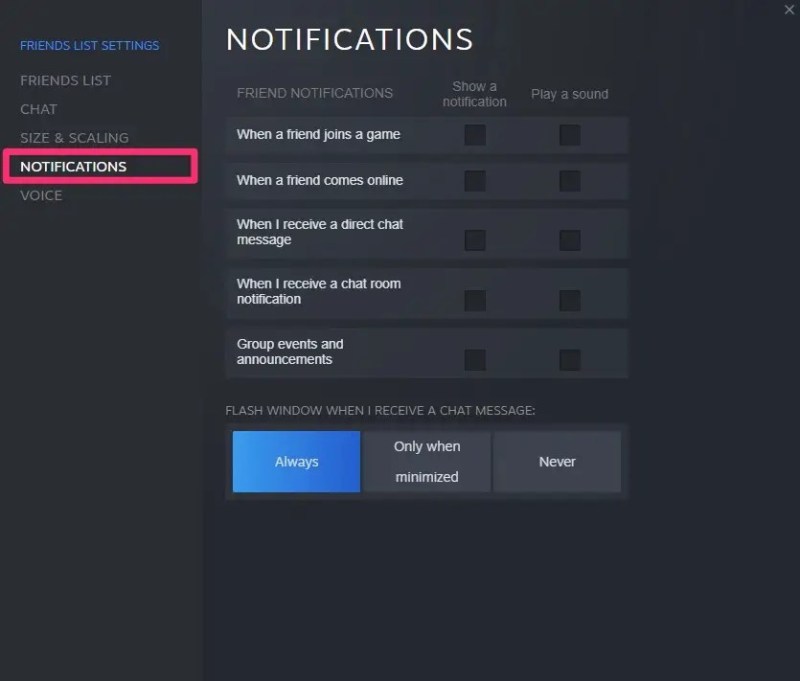
| Steam Settings Menu | Moderately effective; allows per-notification type muting but may miss some channels. |
| Configuration File Edits | Highly effective; can mute all notifications system-wide but requires technical knowledge. |
| Third-Party Tools (e.g., Steam Notifications Extensions) | Variable; depends on tool reliability but can override Steam’s native settings. |
Future Trends and Innovations
The future of Steam notifications may lie in AI-driven filtering and user behavior analysis. Imagine a system that learns your patterns—muting trade offers during work hours but flagging them as urgent before a weekend sale. Valve has already experimented with dynamic notification prioritization, though it remains limited. Another potential trend is deeper integration with operating system-level notification managers, such as Windows’ Focus Assist or macOS’s Do Not Disturb mode. These tools could allow users to mute Steam notifications alongside other apps, creating a unified distraction-free environment. However, the biggest challenge will be balancing automation with user control—ensuring that AI-driven filtering doesn’t accidentally mute important alerts while still reducing noise.
On the technical side, we may see Steam adopt a more modular notification system, where each type of alert (friend messages, game updates, etc.) is handled by a separate service with its own mute settings. This would mirror how modern email clients treat different types of messages (promotions, social, etc.). Additionally, as Steam expands into VR and cloud gaming, notification systems will need to adapt to new contexts—such as suppressing alerts during immersive VR sessions or prioritizing them for cloud-streaming sessions where latency is critical. The key innovation will be making these systems intuitive enough for casual users while offering enough depth for power users to customize their experience.
Conclusion
Muting Steam notifications is less about finding a single solution and more about assembling a toolkit tailored to your needs. The methods outlined here—from quick UI toggles to advanced configuration edits—offer a spectrum of options, each with trade-offs between ease of use and control. The most effective approach depends on your priorities: if you need a fast fix, the UI toggle may suffice. If you’re dealing with persistent interruptions, diving into configuration files or third-party tools will be necessary. The underlying principle remains the same: Steam’s notification system is designed to be intrusive by default, but with the right adjustments, you can reclaim control over when and how it interrupts your workflow.
As Steam continues to evolve, so too will its notification mechanisms. The tools and settings discussed here may change, but the core challenge—balancing connectivity with focus—will persist. By understanding the current landscape, you’re not just learning how to mute Steam notifications today; you’re preparing to adapt as the platform evolves. The goal isn’t to eliminate all interruptions (some are necessary) but to ensure they happen on your terms, when you’re ready to engage.
Comprehensive FAQs
Q: Can I mute Steam notifications without disabling them entirely for all users?
A: Yes. Steam’s per-notification type settings allow you to mute specific alerts (e.g., friend messages) while keeping others active. Navigate to Steam > Settings > Notifications and adjust each category individually. For deeper control, edit the `config\config.vdf` file in your Steam directory to add custom rules.
Q: Will muting Steam notifications affect my friends’ ability to contact me?
A: No. Muting notifications only suppresses the alerts on your end; your friends can still send messages, and the server will record the interaction. You’ll need to manually check your Steam client or enable notifications again to see their messages.
Q: Why do some notifications still appear even after I’ve muted them?
A: High-priority notifications (e.g., trade offers or voice chat invites) often bypass standard mute settings. Additionally, browser notifications or third-party integrations (like Discord rich presence) may require separate adjustments. Check Steam’s web API settings and browser extensions for overrides.
Q: Can I schedule Steam notifications to mute automatically during certain hours?
A: Steam doesn’t natively support scheduled mute settings, but you can use third-party tools like AutoHotkey or Windows Task Scheduler to toggle notifications via scripts. Alternatively, configure your OS’s Do Not Disturb mode to pause Steam during specific times.
Q: Are there risks to editing Steam’s configuration files manually?
A: Yes. Incorrect edits to files like `config.vdf` or `settings.json` can corrupt Steam’s client, leading to crashes or data loss. Always back up your files before making changes, and consult community guides (e.g., SteamDB) for verified tweaks.
Q: How do I mute Steam notifications on mobile devices?
A: On Android/iOS, open the Steam app, tap your profile icon > Settings > Notifications, and toggle off the categories you want to mute. For system-wide suppression, disable Steam’s notification permissions in your device’s app settings.
Q: Can I mute Steam notifications for specific games only?
A: Not directly. Steam’s settings apply globally, but you can mitigate this by muting specific notification types (e.g., achievements) and using game-specific overlays (like Discord) to filter in-game alerts separately.
Q: Why do I still get email notifications from Steam even after muting them in the client?
A: Steam’s email notifications are managed separately. Log in to your Steam account via a browser, go to Account Details > Notifications, and disable email alerts. Alternatively, unsubscribe from Steam’s marketing emails via the footer of their website.
Q: Are there third-party apps that can mute Steam notifications more effectively?
A: Yes. Tools like Steam Notifications for Chrome (browser extension) or SteamMute (Windows utility) offer additional filtering. However, use them cautiously, as some may conflict with Steam’s native settings or pose privacy risks.
Q: How do I revert Steam notifications to default settings?
A: Delete or rename the `config` folder in your Steam directory (back up first), then restart Steam. It will regenerate default settings. Alternatively, reset via Steam > Settings > Reset to Defaults (where available).
Leave a Comment
Comments are moderated before appearing. The data you submit is processed according to the Privacy Policy of versiliasolutions.oneagency.co.