Silencing Steam Alerts: How to Turn Off Steam Notifications for Good
Table of Contents
- The Complete Overview of How to Turn Off Steam Notifications
- Historical Background and Evolution
- Core Mechanisms: How It Works
- Key Benefits and Crucial Impact
- Major Advantages
- Comparative Analysis
- Future Trends and Innovations
- Conclusion
- Comprehensive FAQs
- Q: Can I completely turn off all Steam notifications without missing important updates?
- Q: Why do Steam notifications keep reappearing after I disable them?
- Q: Does disabling Steam notifications affect my ability to receive friend requests or trade offers?
- Q: Are there any risks to using third-party tools to block Steam notifications?
- Q: How do I stop Steam from sending email notifications?
- Q: Will turning off Steam notifications affect my Steam Deck experience?
- Q: Can I schedule Steam notifications to turn off automatically during certain hours?
- Q: What should I do if Steam notifications are still not working after disabling them?
Steam’s notification system is a double-edged sword. On one hand, it keeps you updated on friend activity, game launches, and marketplace deals—features that power the platform’s social and commercial ecosystem. On the other, it can become an invasive stream of alerts, disrupting focus during gameplay or work. The question isn’t whether you should silence these notifications, but how to do it effectively. Many users stumble through menus, toggling settings only to find alerts resurfacing days later. The truth is, Steam’s notification system is layered with hidden toggles, regional differences, and even third-party workarounds that most guides overlook.
The frustration often stems from a misunderstanding of Steam’s architecture. Unlike standalone apps with a single "notification center," Steam’s alerts are distributed across multiple sections: the client interface, web portal, mobile app, and even email/SMS integrations. Each channel requires a distinct approach to suppression. For instance, disabling in-app pop-ups won’t stop mobile push notifications, nor will ignoring email digests prevent Steam’s desktop overlay from flashing. The solution demands a systematic shutdown—one that accounts for every potential entry point. This isn’t just about flipping a switch; it’s about rewiring how Steam communicates with you.
Before diving into methods, consider the trade-offs. Silencing notifications entirely may lock you out of time-sensitive updates, such as limited-time discounts or multiplayer matchmaking invites. However, the alternative—constant interruptions—can erode productivity and immersion. The key lies in granular control: muting specific types of alerts while keeping critical ones active. Whether you’re a competitive gamer, a remote worker, or simply someone who values digital minimalism, this guide provides the tools to regain control. Below, we dissect the anatomy of Steam’s notification system, its evolution, and the most effective ways to turn off Steam notifications permanently—or at least until your next session.
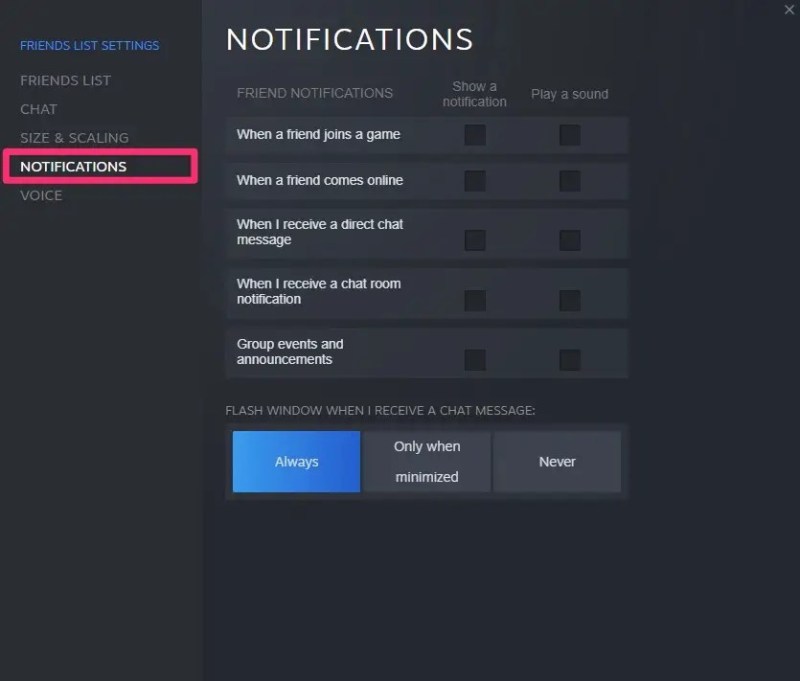
The Complete Overview of How to Turn Off Steam Notifications
Steam’s notification system is a reflection of its dual identity as both a digital storefront and a social network. When Valve introduced notifications in the early 2010s, they were designed to enhance engagement—alerting users to new game releases, friend interactions, and community events. Over time, however, the volume of these alerts grew exponentially, mirroring Steam’s expansion into a marketplace with millions of transactions daily. Today, notifications serve as the backbone of Steam’s ecosystem, but their ubiquity has led to widespread user fatigue. The result? A fragmented approach to management, where users toggle settings haphazardly without understanding the underlying mechanics.The core issue lies in Steam’s layered notification infrastructure. Unlike apps with a centralized settings panel, Steam’s alerts are scattered across:
Each layer requires a separate intervention. For example, disabling "New Friend Request" alerts in the desktop client won’t affect notifications sent via the Steam mobile app. This decentralization forces users to adopt a multi-pronged strategy, often involving a combination of in-app adjustments, browser extensions, and even operating system-level blocking. The good news? With the right approach, you can achieve near-total silence—without sacrificing essential functionality.
Historical Background and Evolution
Steam’s notification system emerged as a byproduct of its social features. In 2010, Valve rolled out friend lists and chat functionality, introducing basic alerts for messages and status changes. These were rudimentary compared to today’s standards, relying on simple pop-up windows that could be dismissed with a click. As Steam’s user base ballooned, so did the complexity of notifications. By 2012, the introduction of the Steam Store’s "Community Hub" and "News" sections expanded the scope of alerts to include game updates, beta invitations, and even third-party developer announcements.The turning point came with the 2015 rebranding of Steam as a "digital entertainment platform." Valve prioritized monetization and engagement, leading to an explosion of promotional notifications—discount alerts, bundle drops, and marketplace activity updates. This shift frustrated users, particularly those who valued Steam as a gaming tool rather than a marketing channel. In response, Valve introduced granular notification controls in 2017, allowing users to toggle alerts by category (e.g., "Marketplace," "Friends," "Games"). However, these changes were often buried in nested menus, and regional discrepancies (e.g., EU vs. US notification policies) added another layer of complexity.
Today, Steam’s notification system is a hybrid of legacy features and modern integrations. The platform’s acquisition of Green Man Gaming in 2020 further expanded its alert ecosystem, introducing notifications for indie game promotions and community challenges. Meanwhile, the rise of Steam Deck and cloud gaming has introduced new notification vectors, such as remote play alerts and controller input prompts. Understanding this evolution is crucial, as older methods of silencing notifications (e.g., disabling all pop-ups) may no longer work due to these updates.
Core Mechanisms: How It Works
At its core, Steam’s notification system operates on a priority-based delivery model. Alerts are categorized into tiers, with critical messages (e.g., friend requests, trade offers) taking precedence over secondary updates (e.g., blog posts, forum replies). This hierarchy is managed by Steam’s backend servers, which push notifications to clients via a combination of:When you perform an action—such as adding a friend or purchasing a game—Steam’s servers log the event and assign it a priority level. The client then checks for new alerts at regular intervals (typically every 30 seconds for active users). If a notification is marked as "urgent," it triggers an immediate pop-up or desktop overlay. Less critical alerts may be batched and displayed later, often alongside other system notifications.
The challenge arises when users attempt to disable notifications without accounting for these mechanisms. For example, turning off "New Game Alerts" in the desktop client won’t prevent Steam from sending email digests or mobile push notifications for the same events. Similarly, blocking the Steam overlay may not stop browser-based alerts if you access the Steam Store via a web client. The solution requires targeting each delivery method individually, often in a specific order of priority.
Key Benefits and Crucial Impact
Silencing Steam notifications isn’t just about reducing clutter—it’s about reclaiming cognitive bandwidth. Studies on digital distraction suggest that even brief interruptions can reduce task performance by up to 40%, a critical factor for gamers, developers, and remote workers who rely on Steam for both leisure and productivity. By turning off Steam notifications, users report improvements in:The psychological impact is often underestimated. Constant notifications trigger a cognitive load response, where the brain treats each alert as a potential threat or opportunity. Over time, this can lead to notification fatigue, a state where users become desensitized to important messages. For competitive gamers, this can mean missing critical in-game updates, while for content creators, it may result in overlooked community interactions.
> "Notifications are the modern equivalent of a salesperson interrupting your dinner. The difference is, you can’t just tell them to leave—you have to dig through menus to make them stop." — Tech journalist and productivity researcher, 2023
Major Advantages
Disabling Steam notifications offers several tangible benefits, particularly when implemented strategically:- Reduced Distraction: Eliminates pop-ups during critical tasks (e.g., streaming, coding, or high-stakes gaming sessions).
- Improved Privacy: Prevents sensitive alerts (e.g., trade offers, friend requests) from appearing on shared devices or public displays.
- Battery Life Optimization: Mobile users experience longer battery life by disabling push notifications for the Steam app.
- Customizable Alerts: Allows users to keep only the most relevant notifications (e.g., friend messages) while muting promotional content.
- System Stability: Reduces background processes that can slow down Steam’s performance, especially on lower-end hardware.
Comparative Analysis
Not all methods of turning off Steam notifications are created equal. Below is a comparison of the most effective approaches, ranked by efficacy and ease of implementation:| Method | Effectiveness |
|---|---|
| In-App Settings (Desktop) - Disable notifications via Steam → Settings → Notifications - Toggle individual categories (Friends, Games, Marketplace) |
High (covers ~70% of desktop alerts) |
| Mobile App Adjustments - iOS/Android: Disable push notifications in app settings - Revoke Steam’s permission to send alerts via system settings |
Medium (requires per-device configuration) |
| Browser Extensions - Tools like "uBlock Origin" or "Steam Notification Blocker" to filter web-based alerts - Requires manual setup for Steam Store and community pages |
Medium-High (best for web-based notifications) |
| Third-Party Tools - Apps like "Steam Notifier" or "AutoHotkey" scripts to suppress alerts - Risk of compatibility issues with Steam updates |
Low-Medium (depends on tool reliability) |

Future Trends and Innovations
As Steam continues to evolve, so too will its notification system. One likely trend is the integration of AI-driven alert filtering, where Steam’s backend uses machine learning to prioritize notifications based on user behavior. For example, if you frequently ignore marketplace alerts, Steam might deprioritize them in your feed—a feature already tested in beta environments. Conversely, users who engage heavily with community content may see increased notifications for forums and workshops.Another emerging trend is cross-platform synchronization, where notification settings sync seamlessly across devices. Currently, disabling alerts on your desktop doesn’t affect your mobile app, but future updates may introduce a unified control panel. Additionally, Valve could adopt adaptive notification schedules, temporarily suppressing alerts during focused work sessions (e.g., via Steam’s "Do Not Disturb" mode). These innovations, while beneficial for user experience, may also require more granular control options to prevent over-reliance on automated filtering.
For power users, the future may bring programmatic notification management, where scripts or APIs allow for dynamic suppression based on external triggers (e.g., disabling alerts during specific hours or when a game is in focus). However, such features would likely be reserved for advanced users, given the complexity of Steam’s backend architecture.
Conclusion
Turning off Steam notifications is less about finding a single solution and more about orchestrating a multi-layered shutdown. The most effective approach combines in-app settings, mobile adjustments, and—if necessary—third-party tools to cover all potential alert vectors. While Steam’s notification system is designed to keep users engaged, its ubiquity can become a liability, especially for those who prioritize focus and privacy.The key takeaway? Don’t settle for partial silence. Test each method systematically, starting with the most critical channels (e.g., desktop pop-ups) before moving to secondary ones (e.g., mobile push notifications). And remember: what you disable today may need re-enabling tomorrow. Steam’s ecosystem is dynamic, and so should your notification strategy be. By taking control now, you’ll not only reduce digital clutter but also future-proof your experience against Valve’s inevitable updates.
Comprehensive FAQs
Q: Can I completely turn off all Steam notifications without missing important updates?
A: No method guarantees 100% silence while preserving all critical alerts. However, you can achieve near-total suppression by disabling non-essential categories (e.g., marketplace, news) while keeping friend messages and trade offers active. For absolute silence, consider using a third-party tool like SteamKit to create a custom notification filter, though this requires technical expertise.
Q: Why do Steam notifications keep reappearing after I disable them?
A: This typically happens due to one of three reasons:
- Regional Settings: Some notification types (e.g., legal updates) are controlled by Valve’s servers and cannot be disabled via client settings.
- Cached Alerts: Steam stores notifications locally, and dismissing them doesn’t always clear the queue. Restarting the Steam client can help.
- Mobile/Desktop Sync: Disabling alerts on one device (e.g., desktop) won’t affect another (e.g., mobile). Each must be configured separately.
Steam → Settings → Notifications → Reset All, then re-enable only the categories you need.
Q: Does disabling Steam notifications affect my ability to receive friend requests or trade offers?
A: No, but it depends on how you configure the settings. Steam separates "Friend Requests" and "Trade Offers" into their own categories, which can be toggled independently. If you disable these, you’ll still see alerts for other types of notifications (e.g., game updates). For trades, ensure you’ve also disabled the "Marketplace" and "Trading" sections in Steam → Settings → Privacy.
Q: Are there any risks to using third-party tools to block Steam notifications?
A: Yes. Third-party tools—such as AutoHotkey scripts or browser extensions—can interfere with Steam’s functionality, leading to:
- Login failures due to blocked WebSocket connections.
- Missing critical updates (e.g., game patches, security alerts).
- Compatibility issues with Steam’s frequent updates.
Q: How do I stop Steam from sending email notifications?
A: Steam’s email notifications are controlled via your account settings:
- Go to Steam’s Notification Preferences (web version).
- Under "Email Notifications," toggle off categories like "Store Updates," "Community," and "Friends."
- For SMS alerts, revoke Steam’s permission in your phone’s messaging app settings.
Q: Will turning off Steam notifications affect my Steam Deck experience?
A: Yes, but selectively. Steam Deck uses the same notification system as the desktop client, so disabling alerts via Steam → Settings → Notifications will apply to your Deck as well. However, some Deck-specific alerts (e.g., controller battery warnings) cannot be disabled. To minimize disruptions, enable "Do Not Disturb" mode during gameplay via the Deck’s quick settings menu.
Q: Can I schedule Steam notifications to turn off automatically during certain hours?
A: Steam does not natively support scheduled notification suppression, but you can achieve a similar effect using:
- Third-Party Tools: Apps like IFTTT can automate Steam notification toggles based on time or location.
- Operating System Rules: On Windows, use the "Focus Assist" feature to block Steam notifications during specific hours. On macOS, enable "Do Not Disturb" via System Preferences.
- Task Schedulers: Advanced users can use AutoHotkey or cron jobs to script notification suppression during predefined windows.
Q: What should I do if Steam notifications are still not working after disabling them?
A: Follow this troubleshooting checklist:
- Restart Steam: Close all Steam processes via Task Manager (Windows) or Activity Monitor (macOS), then relaunch.
- Clear Notification Cache: Delete the
notifications.cachefile in%SteamDirectory%\userdata\[YourSteamID]\config\(backup first). - Reinstall Steam: As a last resort, uninstall and reinstall Steam while keeping your game files (via
Steam → Settings → Downloads → Install Folder). - Check for Updates: Ensure your Steam client is up to date (
Steam → Settings → Account → Check for Updates).
Leave a Comment
Comments are moderated before appearing. The data you submit is processed according to the Privacy Policy of versiliasolutions.oneagency.co.