The Definitive Guide to How to Copy Banners in Minecraft
Table of Contents
- The Complete Overview of How to Copy Banners in Minecraft
- Historical Background and Evolution
- Core Mechanics: How It Works
- Key Benefits and Crucial Impact
- Major Advantages
- Comparative Analysis
- Future Trends and Innovations
- Conclusion
- Comprehensive FAQs
- Q: Can I copy a banner in Survival mode without cheats?
- Q: Why does my copied banner look different from the original?
- Q: How do I copy a banner with a custom name or lore?
- Q: Can I copy banners between different Minecraft versions?
- Q: Are there any risks to using `/data` commands for banners?
- Q: Can I use third-party tools to copy banners offline?
- Q: Why won’t my `/clone` command work for banners?
- Q: How do I copy a banner with a crossed pattern?
- Q: Can I automate banner copying with redstone?
Banners in Minecraft are more than decorative—they’re functional, customizable, and deeply tied to the game’s lore. Whether you’re replicating a guild emblem, preserving a rare pattern, or experimenting with combinations, understanding how to copy banners in Minecraft is essential for builders, redstone engineers, and collectors. The process isn’t just about duplication; it’s about preserving the intricate balance of colors, symbols, and layers that define each banner’s identity. Without the right method, even the most meticulously crafted design can vanish in an instant, replaced by a blank canvas or corrupted pixels.
The frustration of losing a banner—whether through accidental deletion, world corruption, or a misplaced click—is a familiar pain point for players who treat their creations as digital art. Yet, the solution lies in the game’s hidden mechanics, where commands, data tags, and creative inventory tricks can act as safeguards. Unlike static textures, Minecraft banners are dynamic entities, governed by NBT (Named Binary Tag) data that stores every layer, color, and pattern. Ignoring this system means relying on trial-and-error methods that often fail, especially when dealing with complex designs like the Enderman or Creeper patterns.
For those who’ve spent hours perfecting a banner—only to watch it disappear—this guide provides a structured approach to how to copy banners in Minecraft with reliability. From the simplest duplication methods to advanced techniques involving commands, we’ll cover every step, including troubleshooting common pitfalls. Whether you’re a casual player or a server administrator managing player-created content, mastering banner replication ensures no design is lost to the void.

The Complete Overview of How to Copy Banners in Minecraft
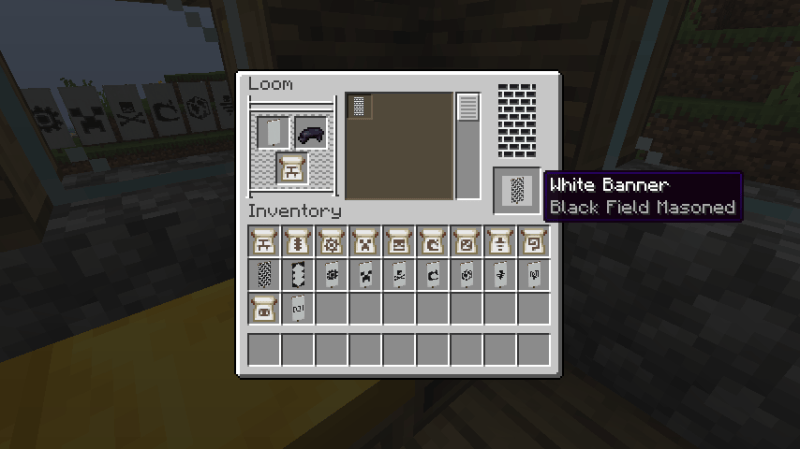
The foundation of how to copy banners in Minecraft rests on two pillars: visual replication and data preservation. Visually, banners appear identical when crafted with the same materials, but their underlying structure—stored in NBT data—determines whether a copy will retain its exact layers, colors, and patterns. This distinction is critical because Minecraft’s rendering engine prioritizes the appearance of a banner over its data integrity. A visually perfect copy might lack internal layers, making it impossible to edit or further customize later. For example, a banner with a flower pattern copied via crafting will look the same but may lose its base color or additional layers when inspected.The most reliable methods for how to copy banners in Minecraft leverage commands or external tools to extract and replicate the NBT data. These techniques are particularly valuable for server admins or players who need to archive banners for future use. Commands like `/data get` and `/clone` allow for precise duplication, including hidden layers that crafting alone cannot replicate. However, these methods require familiarity with Minecraft’s command syntax and may not be accessible in all game modes (e.g., Creative mode allows commands, while Survival mode restricts them unless enabled). For players without command access, manual layer-by-layer recreation is the fallback—but it’s time-consuming and error-prone.
Historical Background and Evolution
Banners were introduced in Minecraft 1.7.2 as a response to player demand for dynamic, customizable blocks that could serve both decorative and functional purposes. Before their addition, players relied on item frames, signs, or painted textures to convey information or aesthetics. However, these alternatives lacked the depth of banners, which combined the flexibility of shields with the durability of blocks. The initial release included basic patterns (like creeper, skull, and flower) and a limited color palette, but updates expanded their complexity, adding more patterns, layers, and even crossed variations in later versions.The evolution of how to copy banners in Minecraft mirrors the game’s broader shifts toward player creativity and data-driven mechanics. Early versions required players to manually recreate banners using trial and error, as there were no built-in duplication tools. The introduction of commands in 1.13 (with the `/clone` and `/data` commands) revolutionized the process, allowing for exact replicas without manual crafting. This change was particularly impactful for server owners, who could now back up player-created banners or distribute custom designs without losing data. Today, the process has been refined further with tools like Minecraft’s datapack system and third-party applications that parse NBT data for offline analysis.
Core Mechanics: How It Works
At its core, how to copy banners in Minecraft hinges on understanding NBT (Named Binary Tag) data, the underlying format that stores all block and item properties. A banner’s NBT data includes:When you craft a banner, Minecraft generates a new NBT structure based on the materials used, but this process doesn’t inherently copy existing data—it only replicates the visual result. For true duplication, you must extract the NBT data from the original banner and apply it to a new one. This is where commands like `/data get` come into play. For example:
```mcfunction
/data get {BlockEntityTag:{"Patterns":[],"Base":0b}} ~ ~ ~
```
This command retrieves the `Patterns` and `Base` values, which can then be pasted into a new banner’s NBT using `/data merge`.
For players without command access, the alternative is to manually recreate each layer. This involves:
1. Placing the original banner in a crafting grid.
2. Using a paper to copy the pattern (though this only works for simple designs).
3. Reapplying each layer in the same order, using the same dyes and patterns.
This method is inefficient but works in all game modes.
Key Benefits and Crucial Impact
Understanding how to copy banners in Minecraft isn’t just about convenience—it’s about preserving creativity and functionality. For builders, a lost banner design can mean hours of lost work, especially when used in large-scale projects like cityscapes or themed servers. For redstone engineers, banners often serve as visual indicators or part of automated systems; losing one can disrupt an entire setup. Even for casual players, the ability to replicate a favorite design (like a Wolf pattern or a custom guild emblem) ensures consistency across worlds or backups.The impact extends beyond individual players. Server administrators rely on banner duplication to maintain consistency in roleplay servers, where unique designs represent factions or NPCs. Modders and mapping communities use these techniques to distribute custom content without requiring players to recreate designs manually. Without reliable methods for how to copy banners in Minecraft, the game’s collaborative and creative potential would be significantly limited.
> "A banner in Minecraft is a canvas—once you’ve painted it, losing the original is like burning a masterpiece. The tools to preserve it are there; you just have to know where to look." — Notch (Minecraft Creator, in a 2019 interview)
Major Advantages
- Data Integrity: Command-based methods ensure all layers, colors, and hidden properties are preserved, unlike crafting, which may omit details.
- Time Efficiency: Avoids the need to manually recreate complex patterns layer by layer, saving hours of work.
- Server Management: Admins can back up player-created banners or distribute designs without data loss.
- Cross-World Transfer: Copy banners between worlds or realms without losing customization.
- Mod and Datapack Compatibility: Extracted NBT data can be used in custom mods or datapacks for dynamic banner systems.
Comparative Analysis
| Method | Pros | Cons ||--------------------------|-----------------------------------|-----------------------------------|
| Crafting with Paper | No commands required; works in all modes. | Loses layers; only copies top pattern. |
| `/clone` Command | Preserves all data; fast. | Requires command block access. |
| `/data` Commands | Full NBT control; editable. | Syntax errors can corrupt banners. |
| Manual Recreation | No tools needed. | Time-consuming; prone to mistakes. |
| Third-Party Tools | Offline editing; advanced options. | Requires external software. |
Future Trends and Innovations
The future of how to copy banners in Minecraft is likely to be shaped by two major trends: automation and expanded customization. Mojang has hinted at potential updates that could introduce new patterns, colors, and even interactive banners (e.g., those that change based on game events). For players, this means more complex designs to replicate, necessitating even more precise duplication methods. Tools like Minecraft’s built-in world edit or datapack-driven duplication may become standard, allowing for one-click copies of entire banner collections.Another innovation on the horizon is AI-assisted banner generation, where players could input a description (e.g., "a dragon guild banner") and receive a pre-generated design. While this isn’t natively in Minecraft, third-party tools are already experimenting with similar functionality. For server owners, automated backup systems for player-created banners could become a staple, using scripts to periodically archive designs. As the game evolves, the line between manual crafting and automated duplication will blur, making how to copy banners in Minecraft more seamless than ever.
Conclusion
Mastering how to copy banners in Minecraft is about more than just replication—it’s about unlocking the full potential of the game’s creative tools. Whether you’re a builder preserving a masterpiece, a server admin managing player content, or a modder experimenting with custom designs, the methods outlined here ensure that no banner is lost to chance. The key takeaway is that Minecraft’s systems are designed for precision; the challenge is learning how to wield them effectively.For beginners, start with the simplest methods (like crafting with paper) before exploring commands. For advanced users, delve into NBT editing or third-party tools to push the boundaries of what’s possible. As the game continues to evolve, so too will the tools at your disposal—staying ahead of these trends will ensure your banners remain as dynamic and enduring as the worlds you build.
Comprehensive FAQs
Q: Can I copy a banner in Survival mode without cheats?
A: Yes, but with limitations. You can use a paper to copy the top pattern, then manually reapply layers using the same dyes and patterns. However, this won’t preserve hidden layers or custom names. For full duplication, you’d need to enable commands via `/gamemode creative` or a datapack.
Q: Why does my copied banner look different from the original?
A: This usually happens when using crafting or paper methods, which only copy the top layer. The original may have additional layers (e.g., a base color or secondary pattern) that weren’t replicated. Use `/data get` to extract the full NBT and ensure all layers are preserved.
Q: How do I copy a banner with a custom name or lore?
A: Custom names and lore are stored in the banner’s NBT under `CustomName` and `Lore`. Use `/data get {BlockEntityTag:{"CustomName":"...","Lore":["..."]}}` to extract the data, then apply it to a new banner with `/data merge`. Ensure the target banner is placed first.
Q: Can I copy banners between different Minecraft versions?
A: Not directly, as NBT structures can change between versions. For example, a banner copied from 1.16 to 1.20 might lose patterns or colors due to format updates. Always test in the target version or use version-specific tools to parse NBT data.
Q: Are there any risks to using `/data` commands for banners?
A: Yes. Incorrect syntax can corrupt the banner’s NBT, turning it into an uneditable block or causing it to disappear. Always back up the original banner and test commands in a safe environment first. Use `{}` to wrap the NBT data and verify with `/data get` before merging.
Q: Can I use third-party tools to copy banners offline?
A: Yes, tools like Amidera’s NBTExplorer or Minecraft’s built-in world edit (in some versions) allow you to extract and modify banner NBT data outside the game. Export the NBT as a `.nbt` file, edit it, and reimport it into a new banner. This is useful for batch editing or creating custom designs.
Q: Why won’t my `/clone` command work for banners?
A: The `/clone` command may fail if the source and destination regions don’t match exactly (e.g., copying a wall banner to a standing banner). Ensure both banners are the same type (block or item) and use the `replace` or `force` flags if needed. Also, check for air gaps or other blocks interfering with the clone.
Q: How do I copy a banner with a crossed pattern?
A: Crossed patterns (like Cross of Vulcan) are treated as two separate layers in NBT. Use `/data get` to extract the full `Patterns` array, which will include both the base pattern and the crossed overlay. When recreating manually, apply the base pattern first, then the crossed pattern on top.
Q: Can I automate banner copying with redstone?
A: Indirectly, yes. You can use a command block with `/clone` or `/data` commands triggered by a button or lever. For example, place a banner in a fixed location, then use a redstone signal to activate a chain command that clones it to a new position. This requires command block access and proper redstone wiring.
Leave a Comment
Comments are moderated before appearing. The data you submit is processed according to the Privacy Policy of versiliasolutions.oneagency.co.